Welcome to your new Help Hope Live Dashboard experience – launching Tuesday, September 24, 2024!
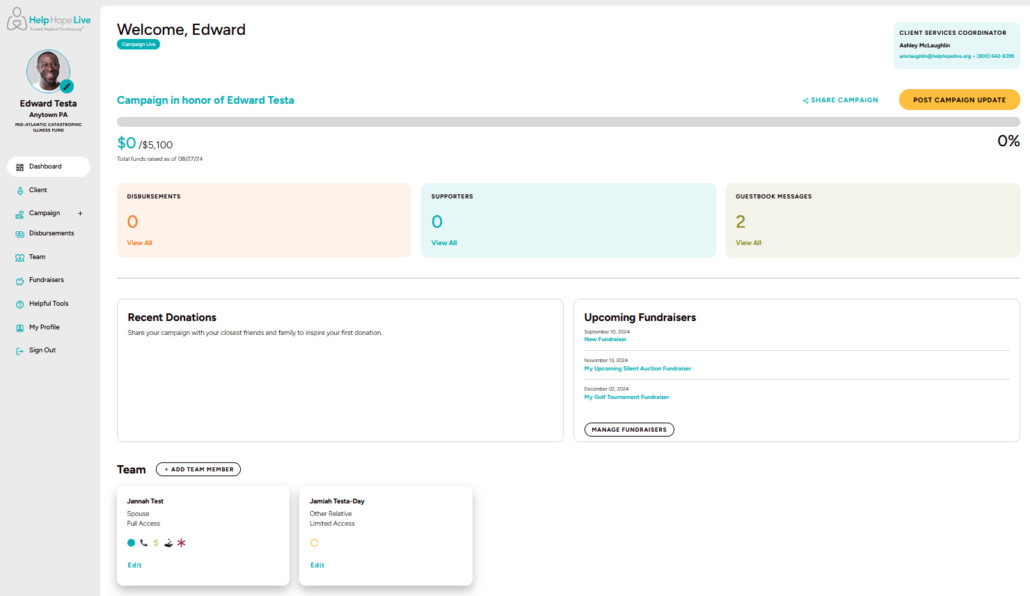
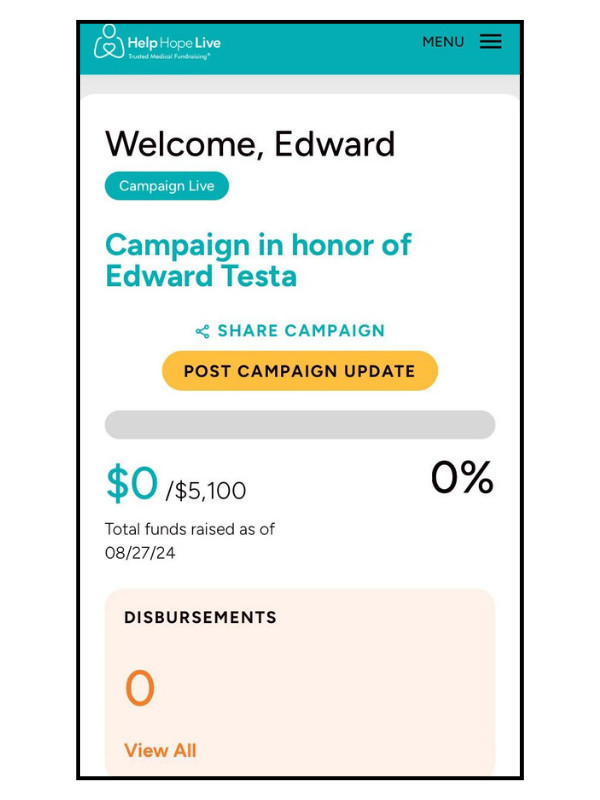
We’ve upgraded your Dashboard to make it easier than ever to edit your Campaign Page, share updates, and get one-on-one fundraising support.
This guide will explain what’s new and how to use your new Dashboard.
Desktop view:
Mobile view:
Find More In-Depth Guides
We have more in-depth step-by-step guides on how to update your profile picture, add image galleries, and more in your new Dashboard experience:
First, two important notes:
No Dashboard features have been removed.
You’ll still be able to use all the features you currently use on your new Dashboard.
Your Campaign Page looks the same.
Your public Campaign Page will look exactly the same to you and your community.
Only your Dashboard has changed.
How to Log into the New Dashboard
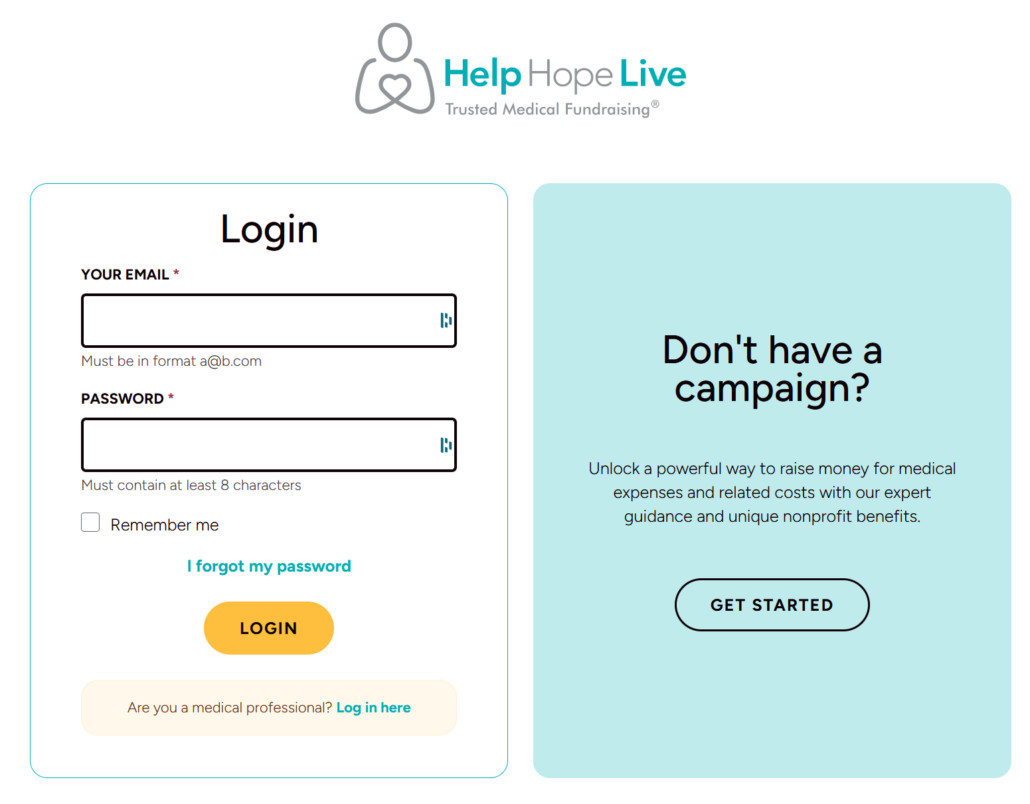
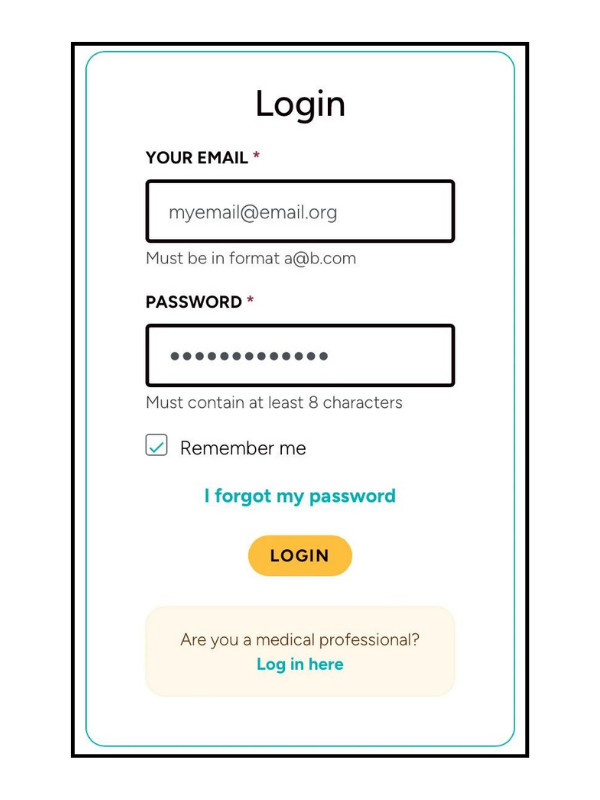
Your login page has a new look, but you will use the same email address and password to log in.
You may be asked to set a new password to adhere to our security guidelines.
Desktop login page:
Mobile login page:
You’ll see your new Dashboard right away.
Your New Dashboard Look
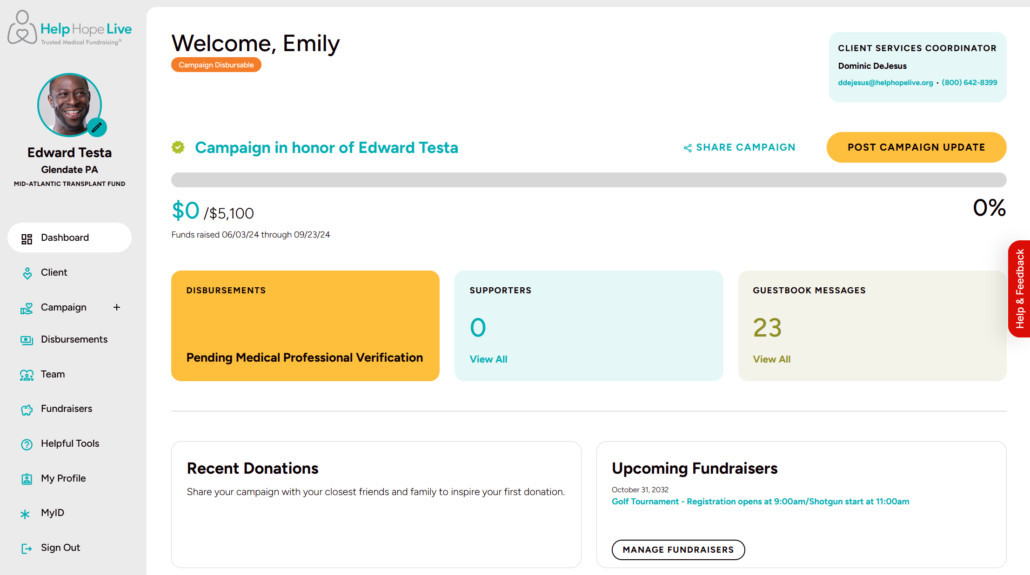
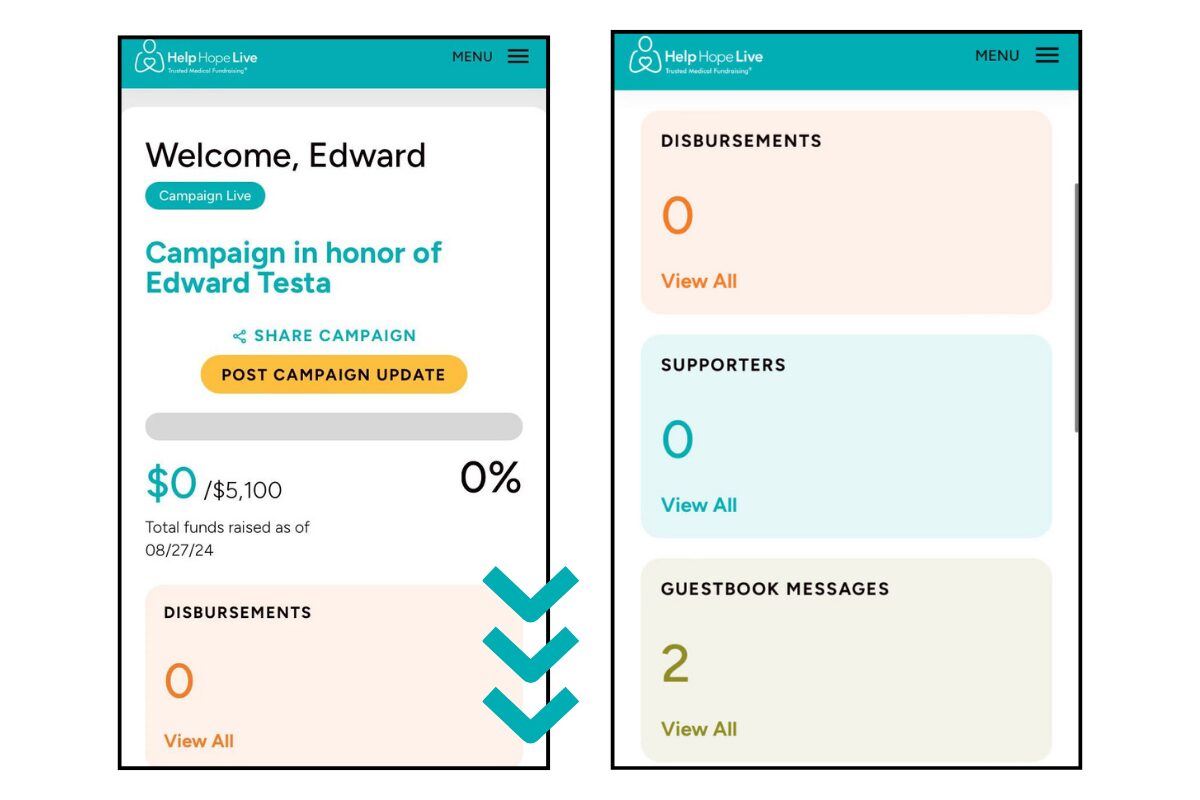
Your Dashboard has been upgraded. Here’s what you will see when you log in.
Dashboard look on desktop:
Dashboard look on mobile:
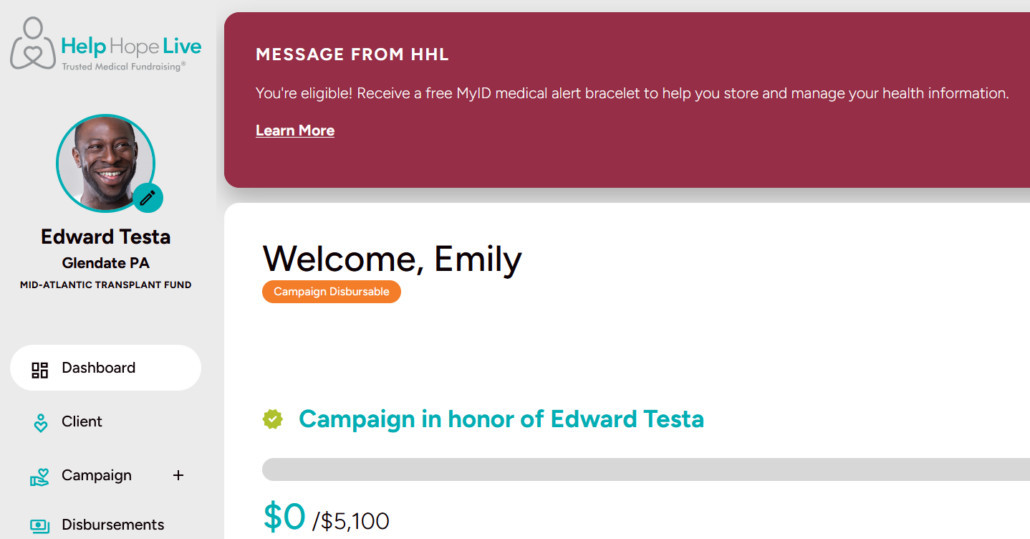
You’ll also see important messages or announcements from Help Hope Live at the top of your Dashboard:
Below, you’ll learn more about your new Dashboard features.
Contact Your Client Services Coordinator
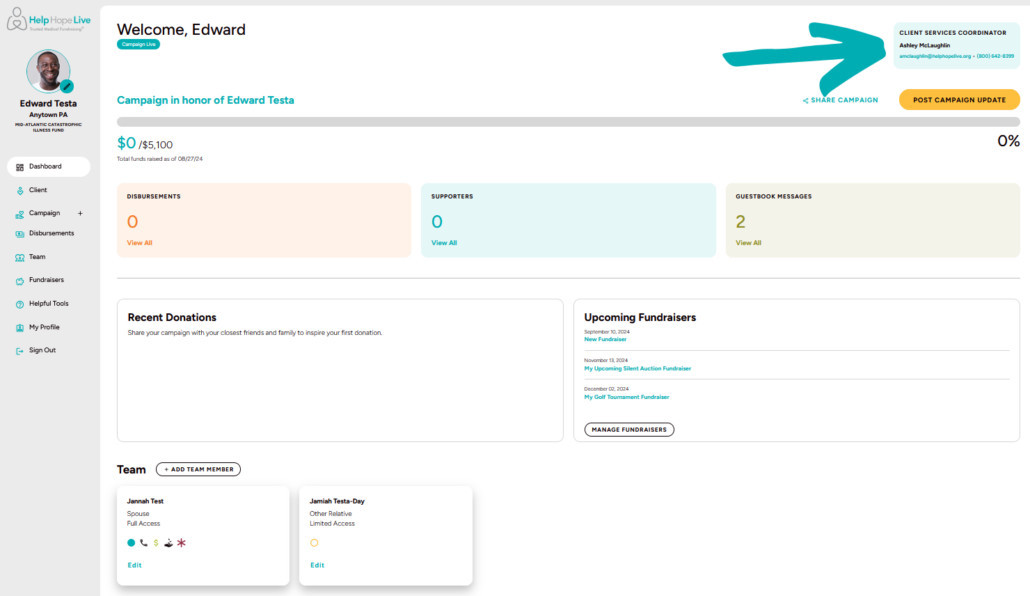
You can now find your Coordinator’s contact information right from your Dashboard.
On desktop devices, you’ll see your Coordinator’s name, email, and phone extension at the top-right of your Dashboard.
Client Services Coordinator info on desktop:
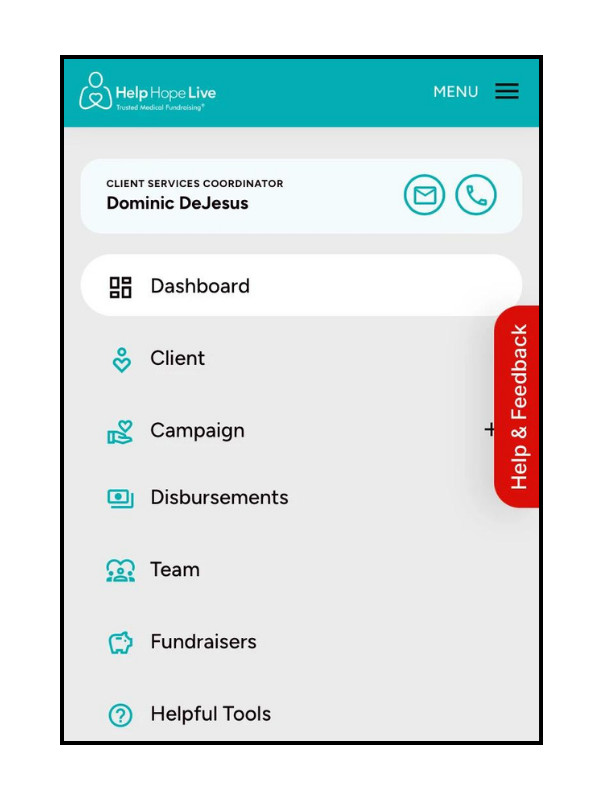
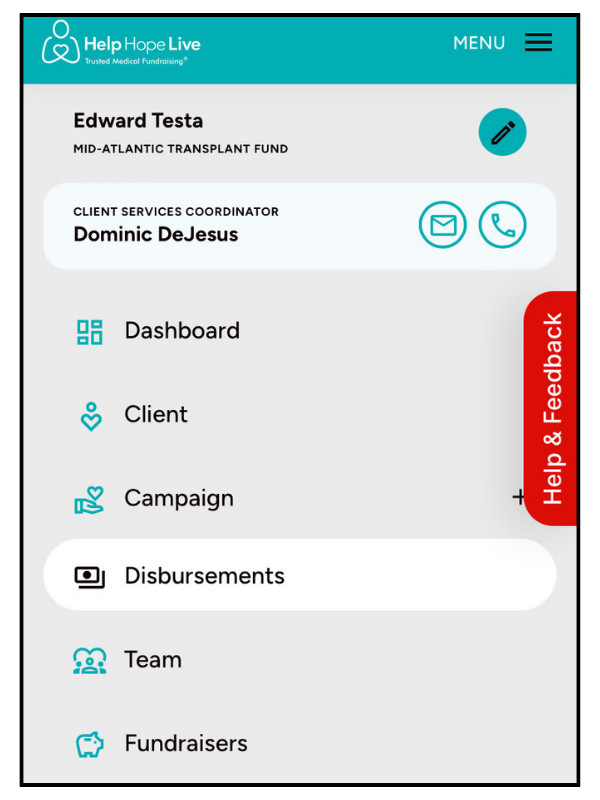
On mobile devices, you’ll see your Coordinator’s name and be able to email or call after tapping the Menu option at the top-right of any page.
Client Services Coordinator info on mobile:
Share Your Campaign from Your Dashboard
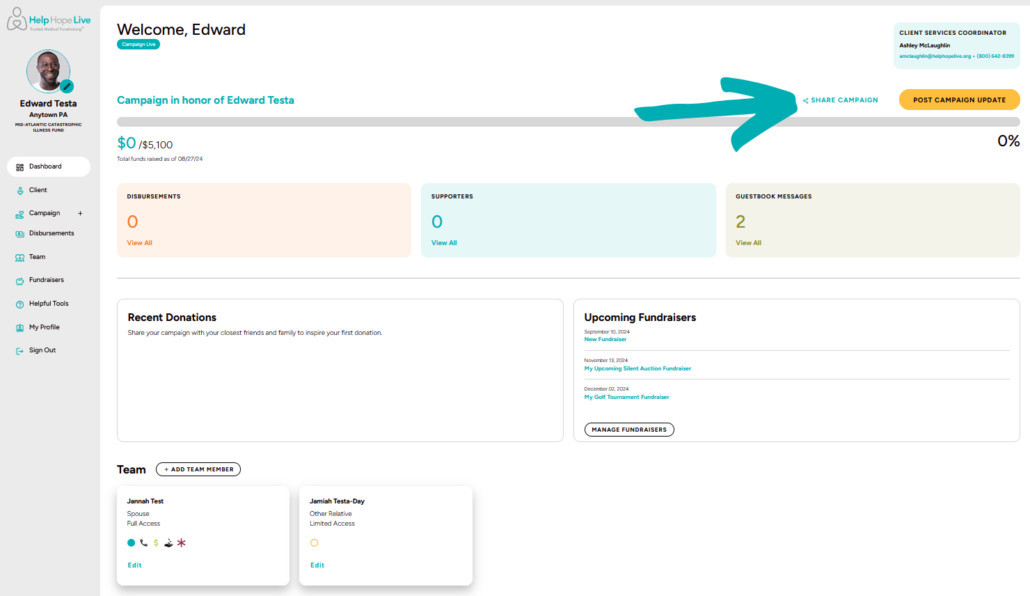
You can now share your Campaign Page right from your Dashboard.
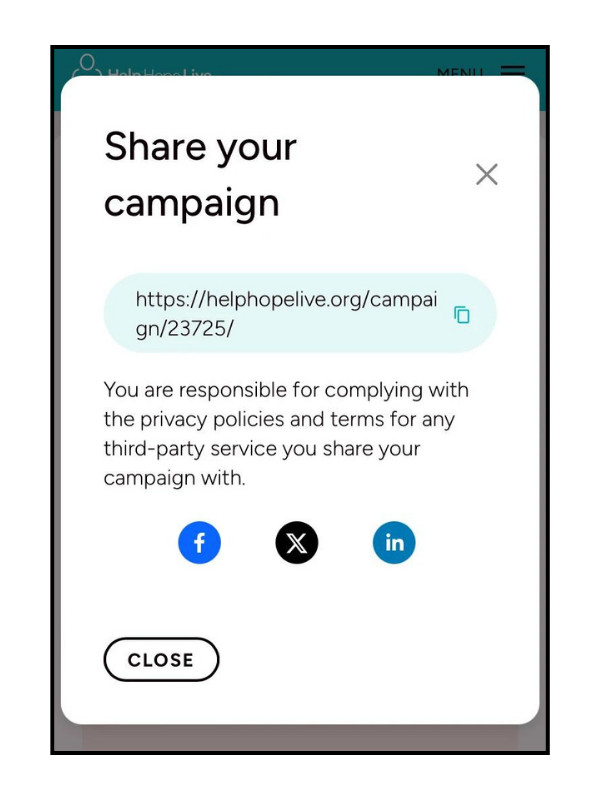
Click Share Campaign to copy the link to your page or share to Facebook, Twitter (X), or LinkedIn.
Share campaign on desktop:
Share campaign on mobile:
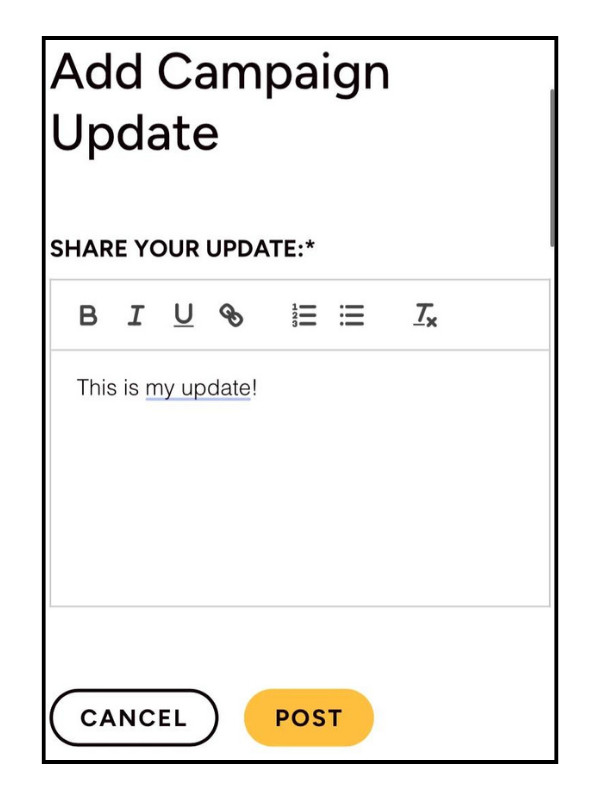
Post Campaign Updates from Your Dashboard
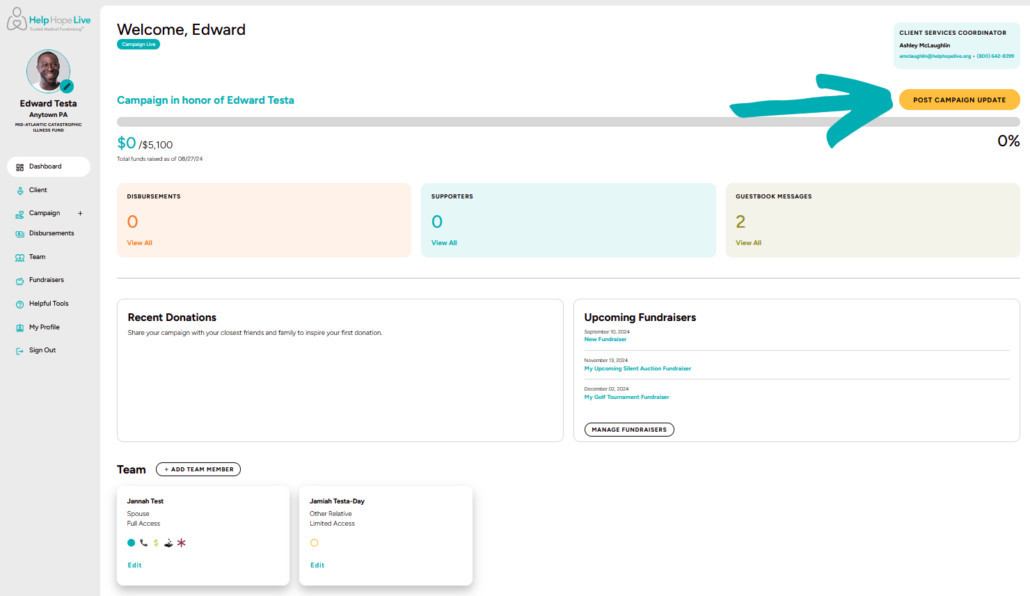
You can add updates to your Campaign Page directly from your Dashboard.
Just click Post Campaign Update.
Post campaign update on desktop:
Post campaign update on mobile:
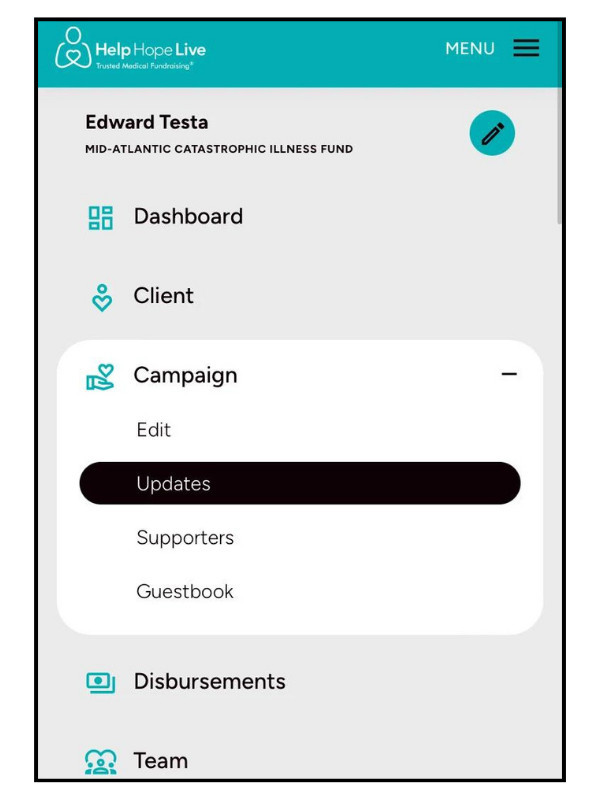
View and edit older updates under Campaign/Updates.
Updates menu on desktop:
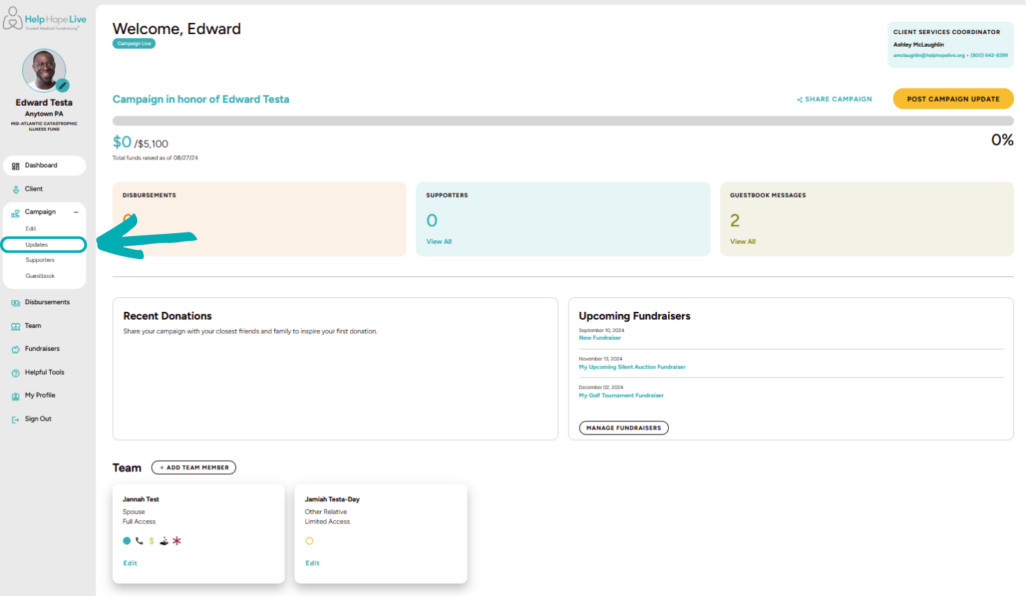
Updates menu on mobile:
Quick Access to Disbursements from Your Dashboard
See the number of disbursements in your honor right from your Dashboard.
Click View All for a complete breakdown. You can also view disbursements under Disbursements.
Keep in mind these features only apply if you have completed your campaign’s medical verification step.
Disbursements menu on desktop:
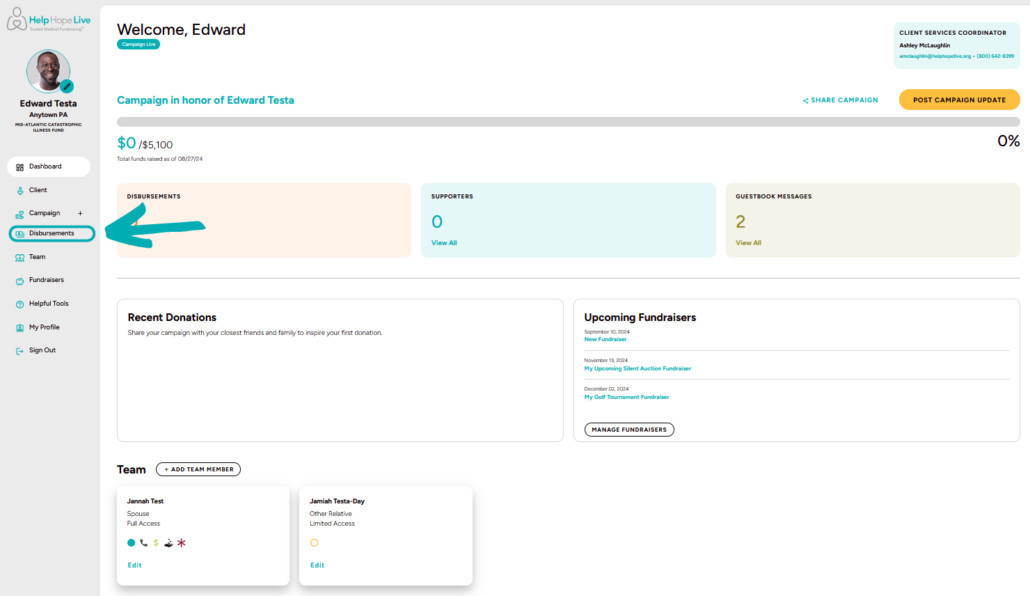
Disbursements menu on mobile:
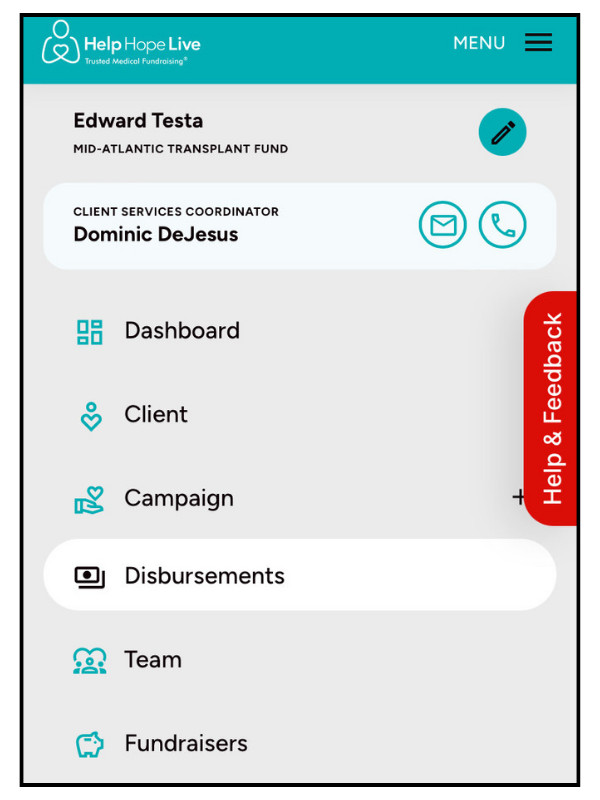
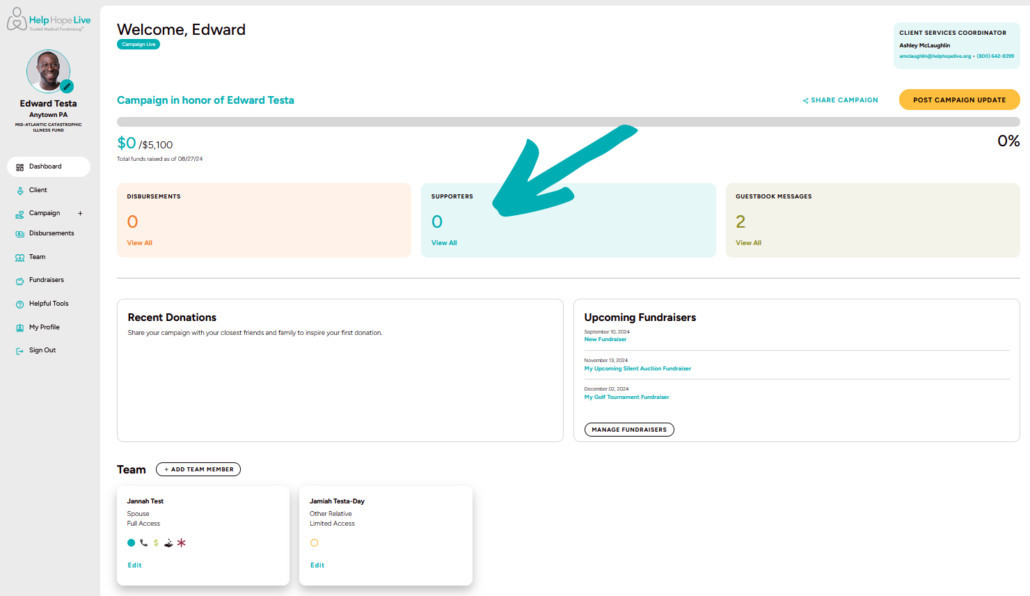
Quick Access to Supporters from Your Dashboard
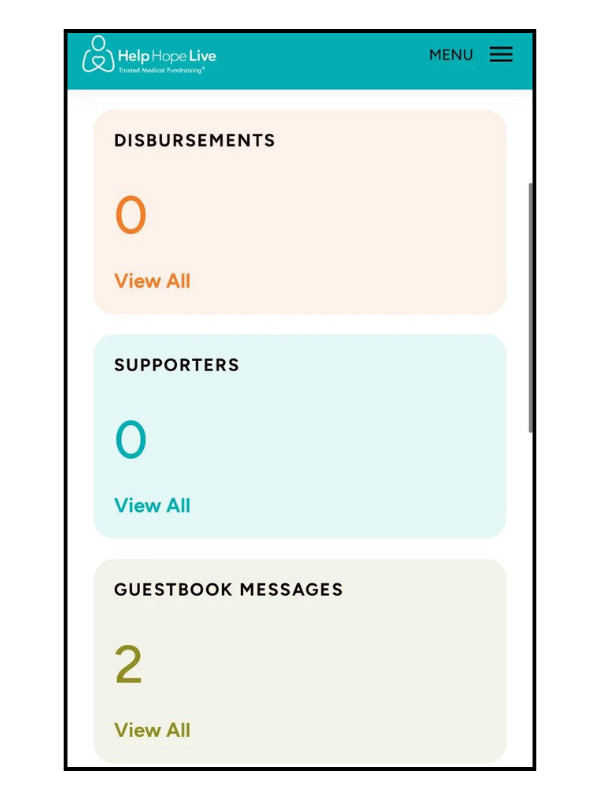
See the number of supporters in your honor right from your Dashboard.
Supporters quick view on desktop:
Supporters quick view on mobile:
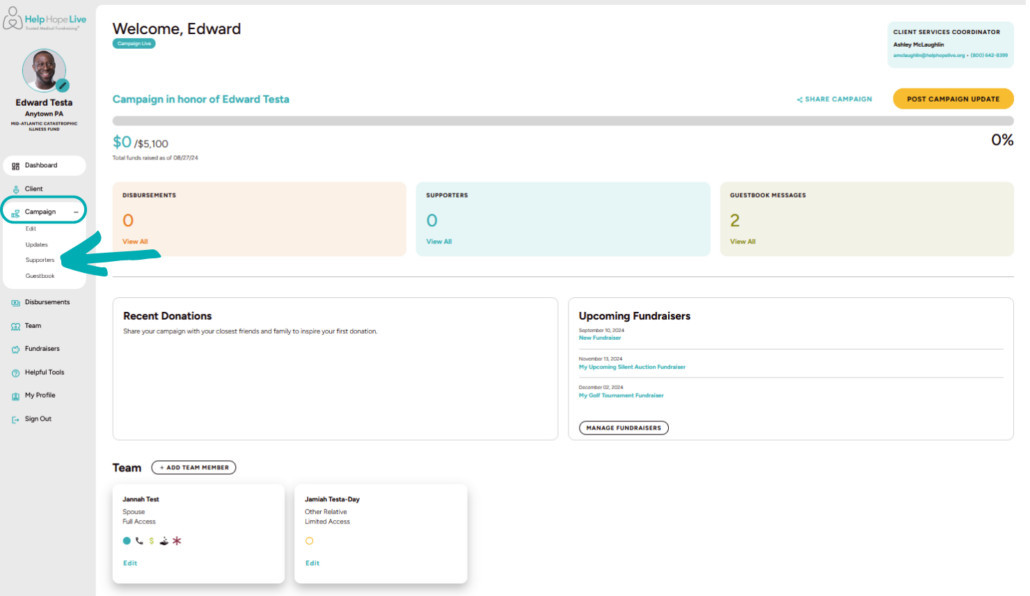
Click View All to see a full list of Supporters and the information they have chosen to share with your campaign.
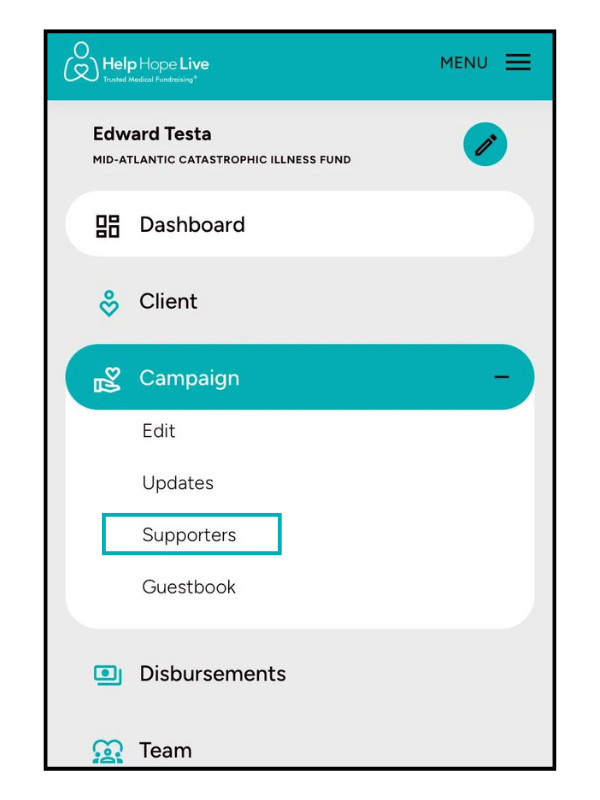
You can also view the Supporters page under Campaign/Supporters.
Supporters menu on desktop:
Supporters menu on mobile:
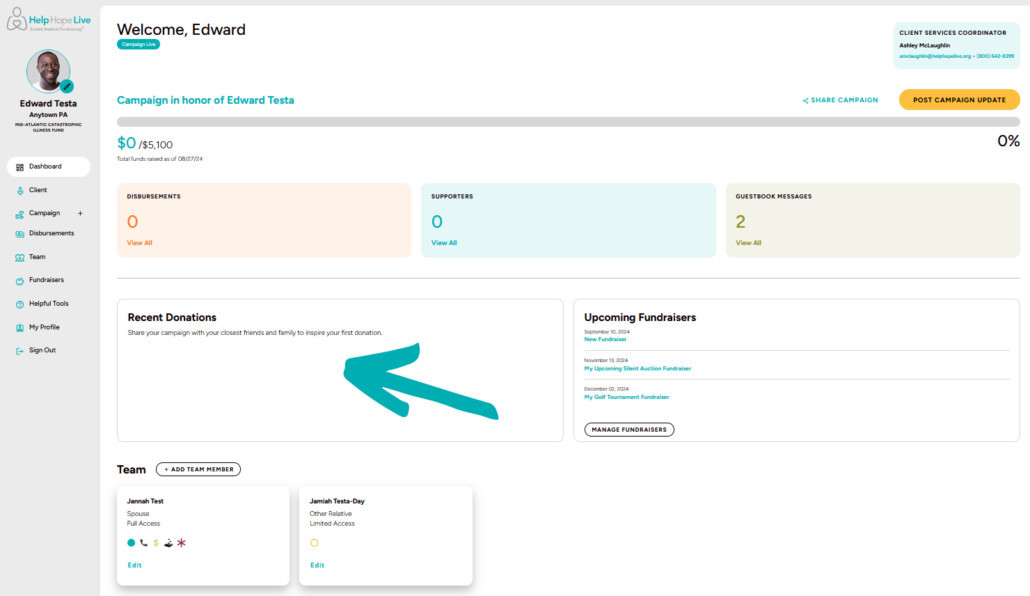
See Recent Donations on Your Dashboard
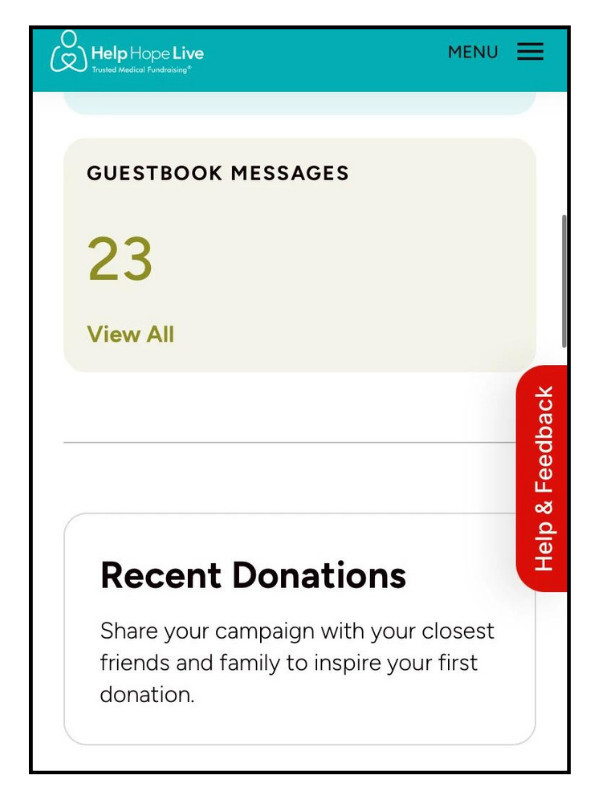
View the most recent donations made in your honor on your Dashboard along with the information your supporters have chosen to share.
Recent Donations on desktop:
Recent Donations on mobile:
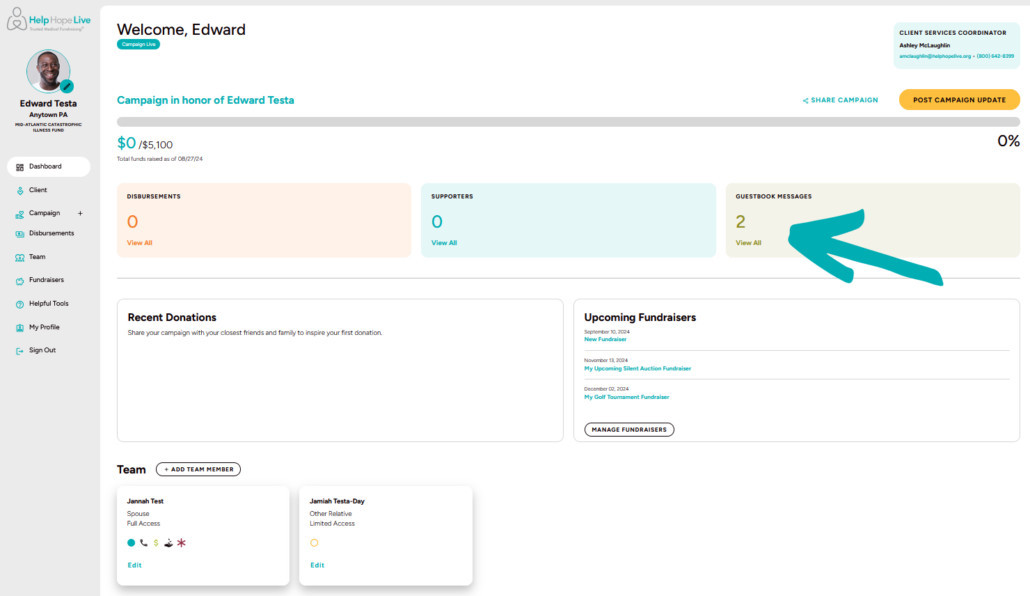
See Guestbook Messages on Your Dashboard
See the number of Guestbook messages on your Dashboard.
Click View All to read or manage the messages. You can also use Campaign/Guestbook.
Guestbook quick view on desktop:
Guestbook quick view on mobile:
See Your Team on Your Dashboard
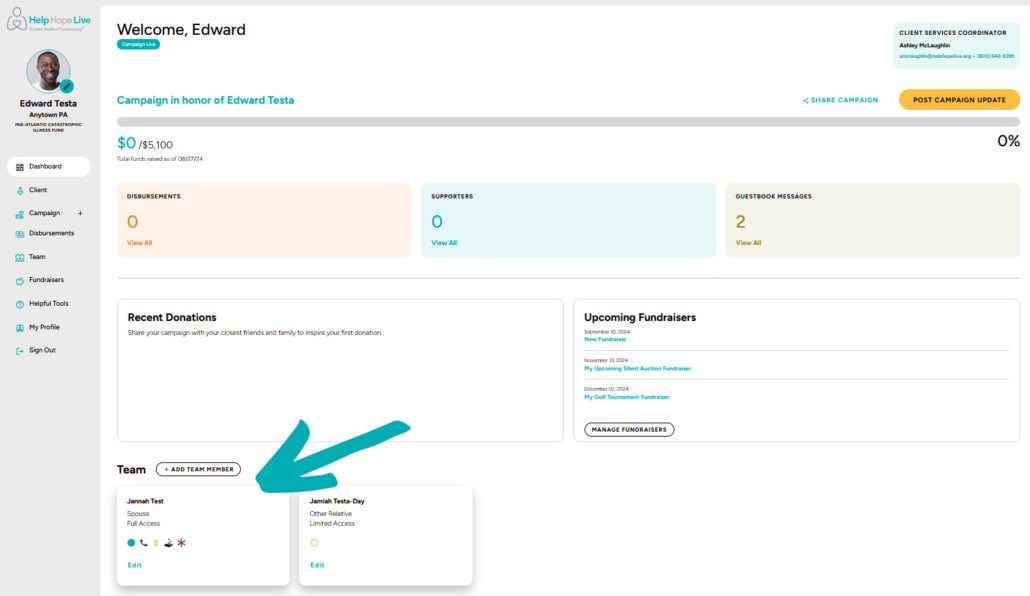
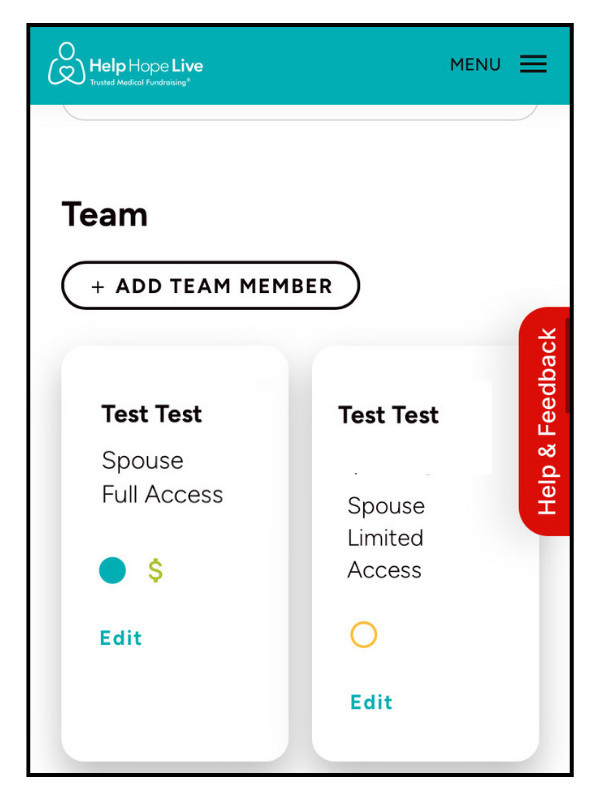
You can add a team member or edit a team member from your Dashboard.
Add team member on desktop:
Add team member on mobile:
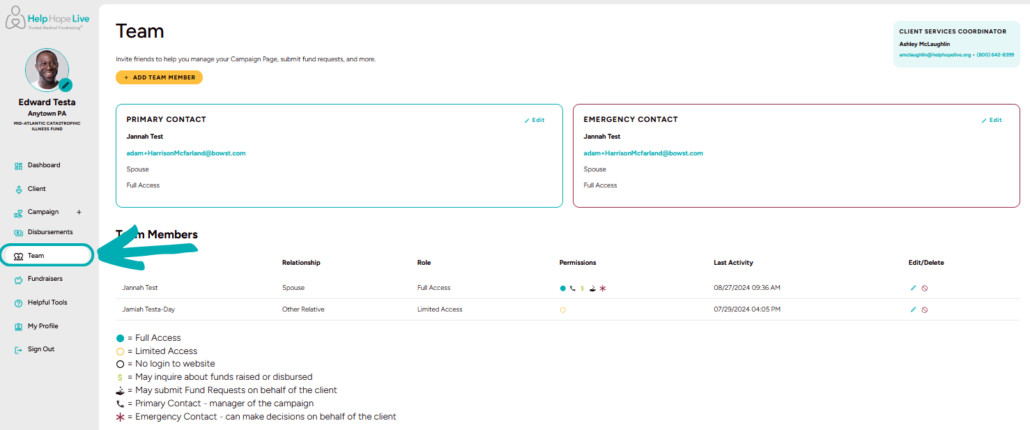
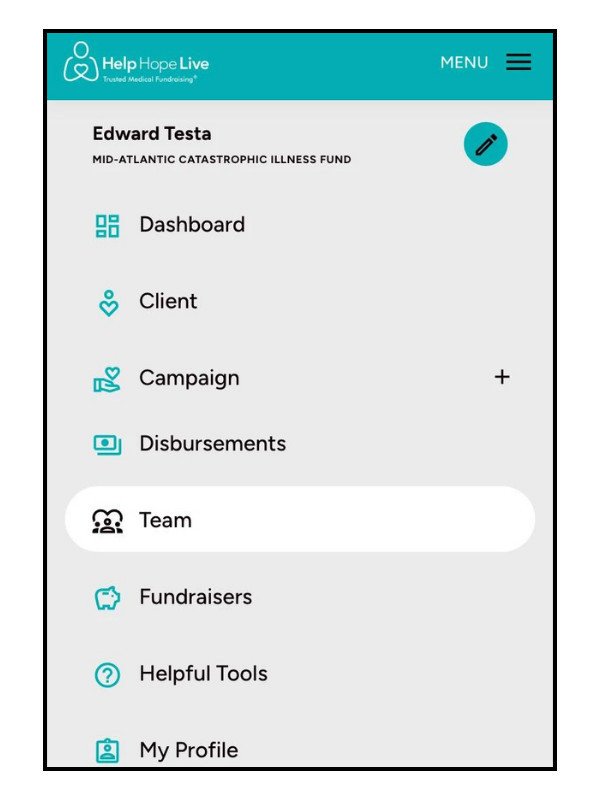
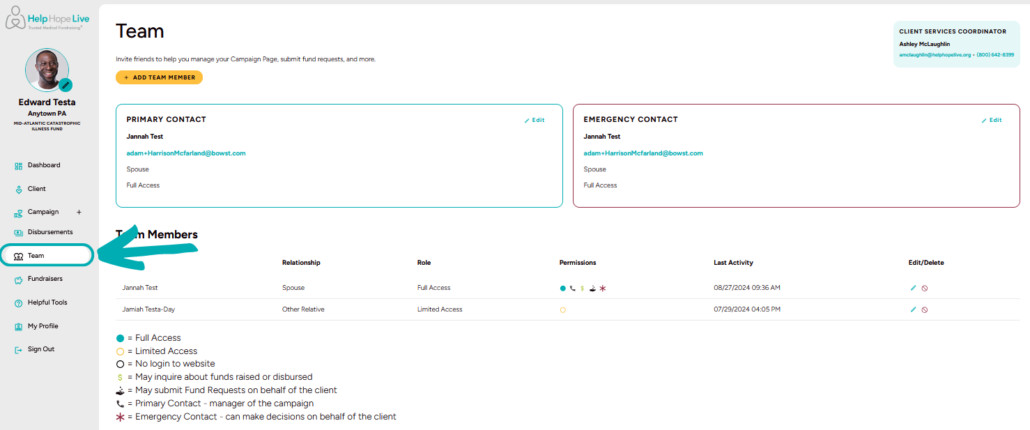
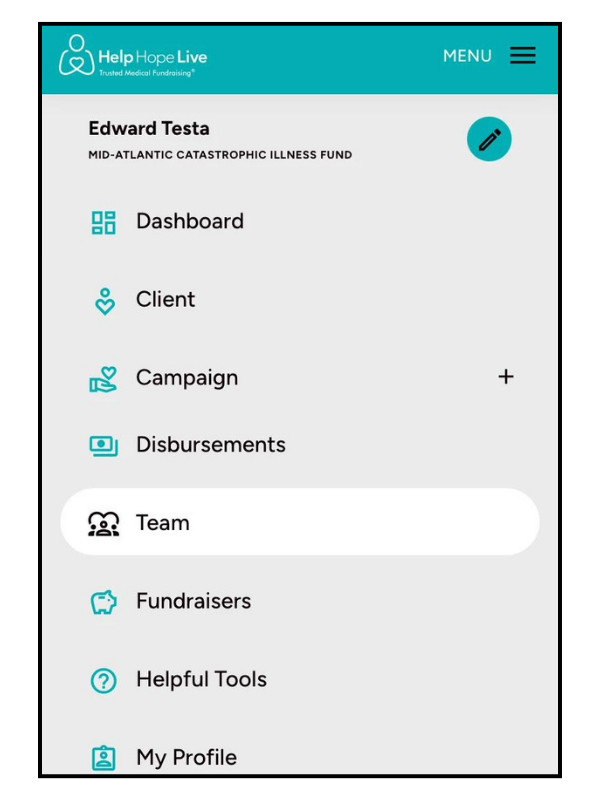
You can view and manage all team members under Team—scroll down for additional insights about your Team page.
Team menu on desktop:
Team menu on mobile:
Edit Your Information
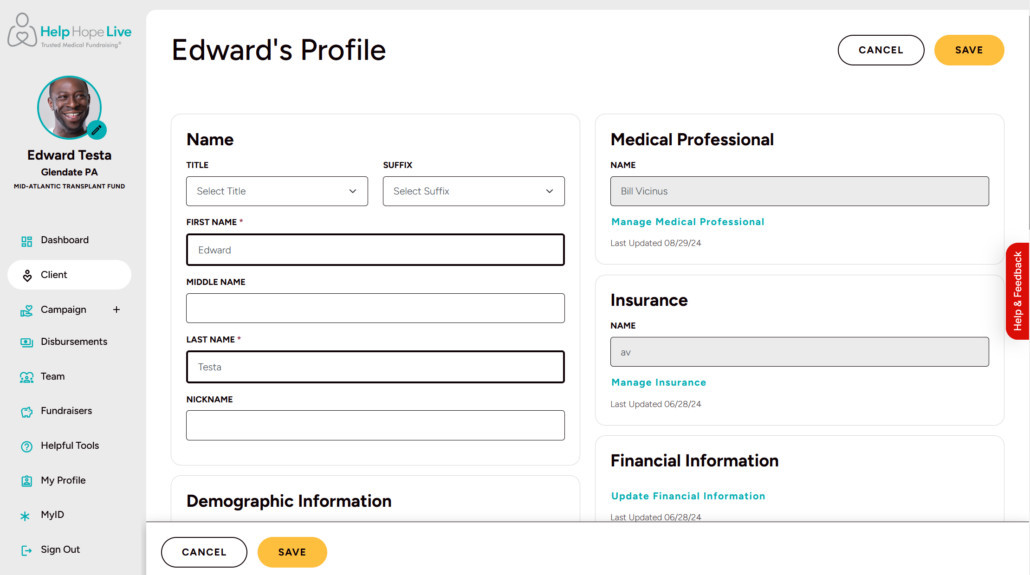
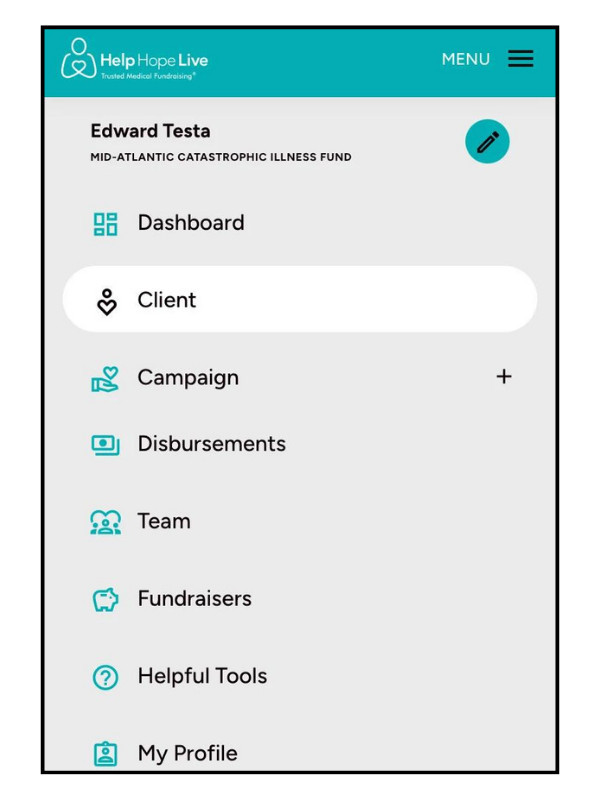
Use Client to view or make changes to your client profile.
Client menu on desktop:
Client menu on mobile:
Edit Your Campaign Page
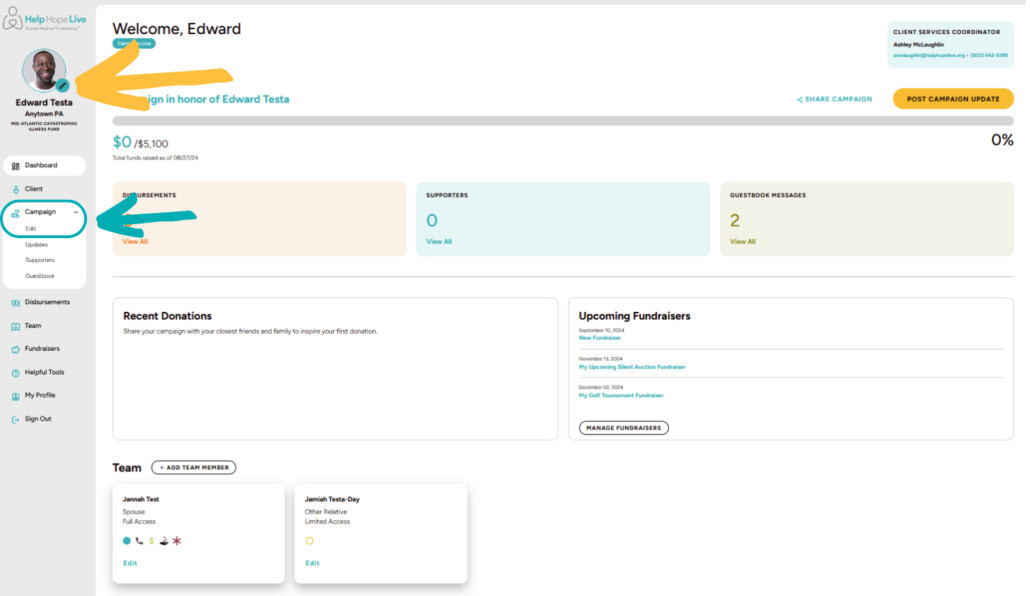
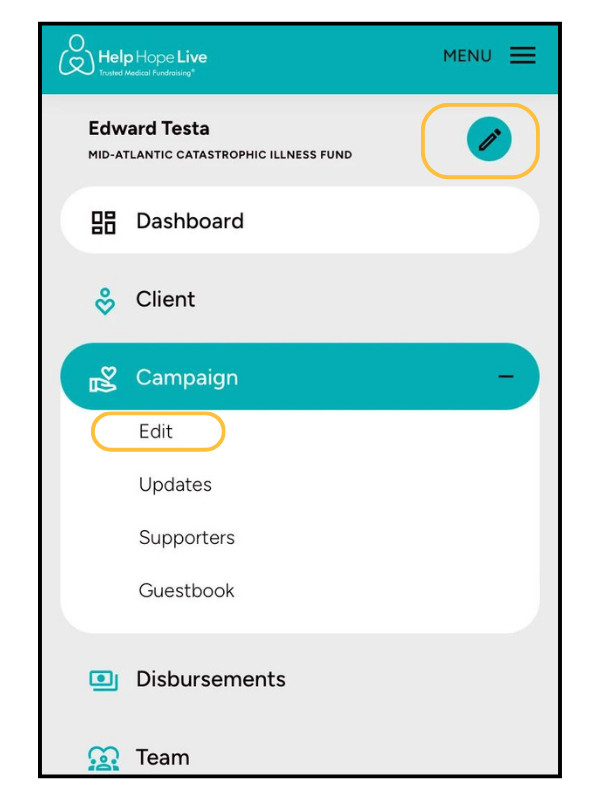
Click the pencil icon next to your profile picture to edit your Campaign Page, or use Campaign/Edit.
Edit pencil & menu on desktop:
Edit pencil & menu on mobile:
While using a mobile device, you can now snap a selfie and use it as a profile picture while in the Campaign Editor.
You’ll see a new option to customize your campaign title.
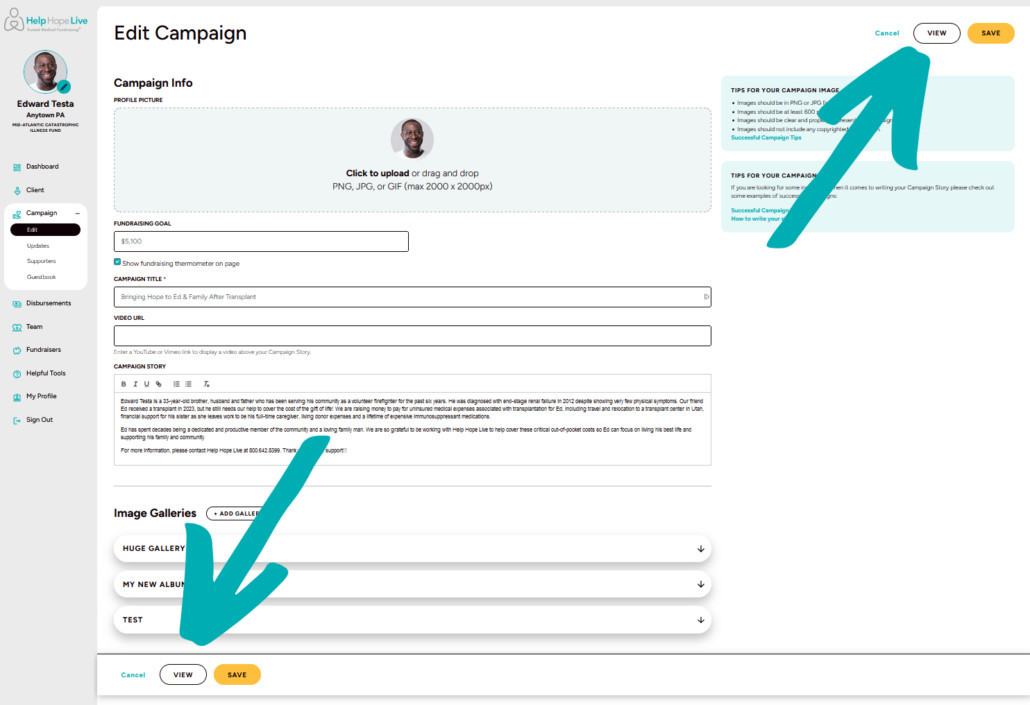
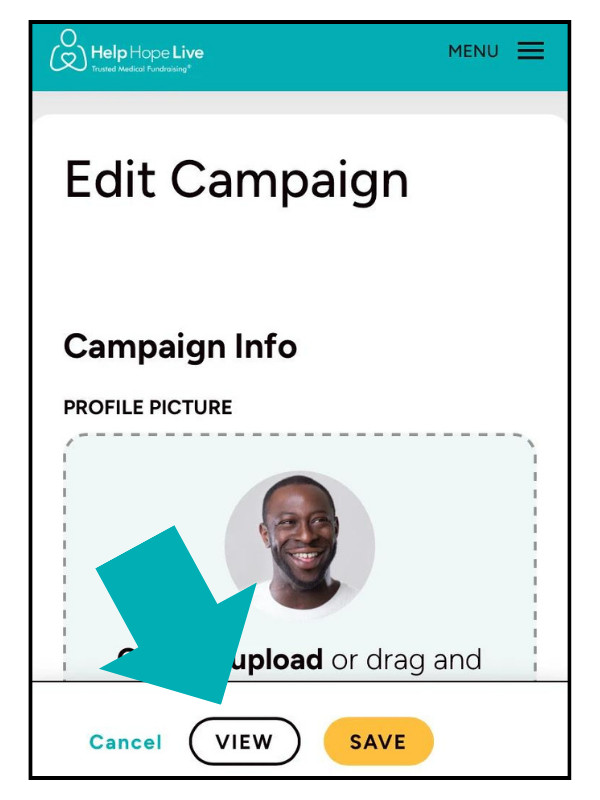
Click View to see how your Campaign Page appears to visitors.
View button on desktop:
View button on mobile:
Add Image Galleries
Your albums are now called Galleries!
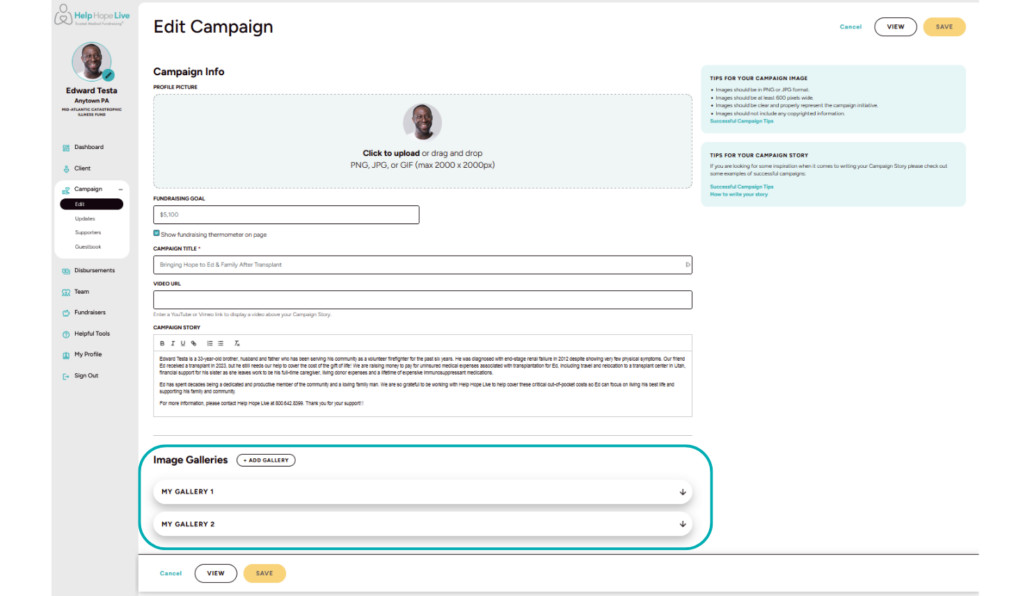
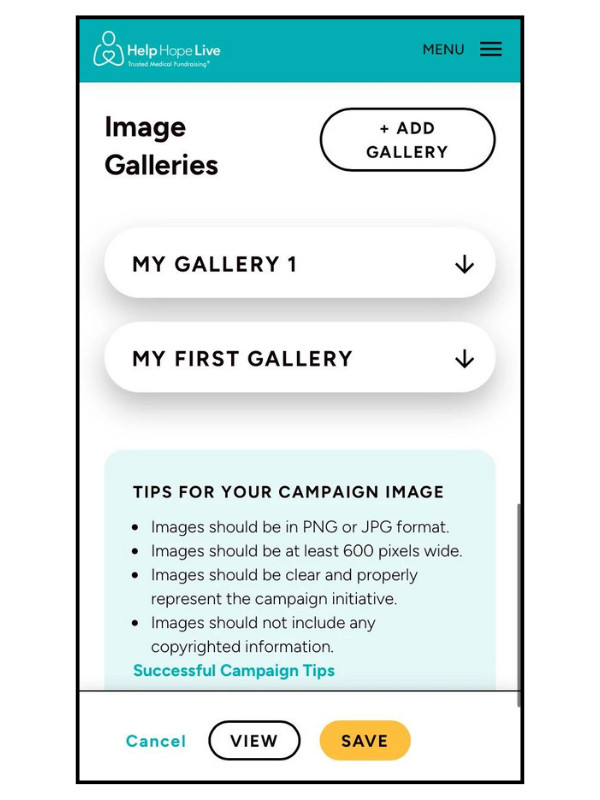
Scroll down to Image Galleries to add a new gallery, edit a gallery, and add captions.
Galleries on desktop:
Galleries on mobile:
View Your Campaign Page
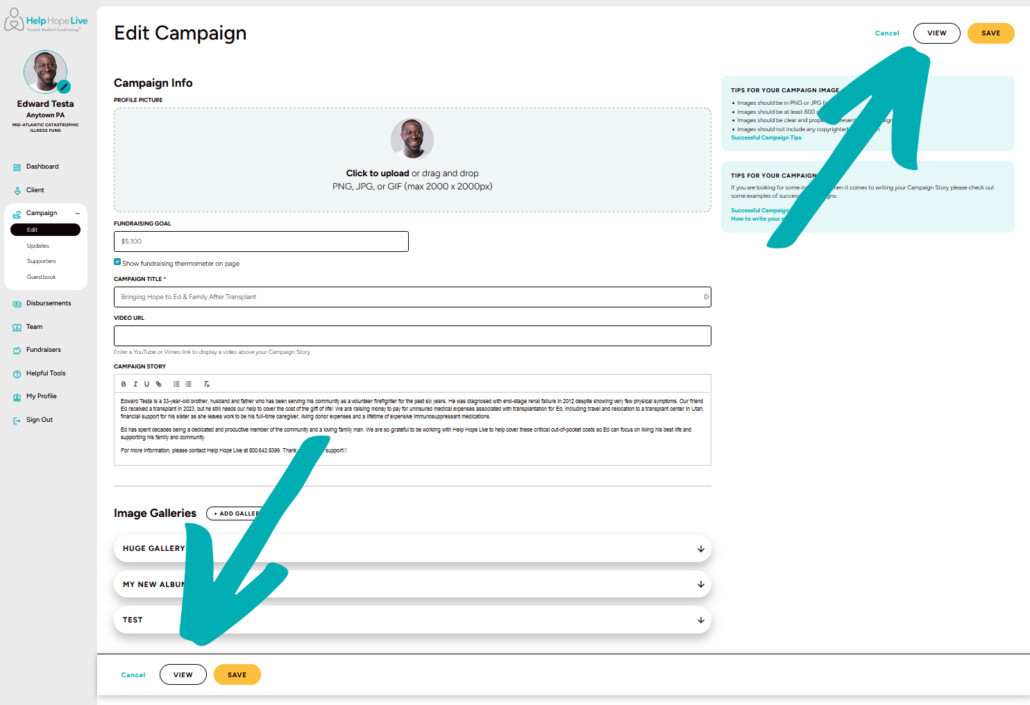
See how your Campaign Page looks to visitors: go to Campaign/Edit and click View.
You’ll also see a View option at the bottom of any Edit/Campaign screen.
View button on desktop:
View button on mobile:
Add and Manage Campaign Updates
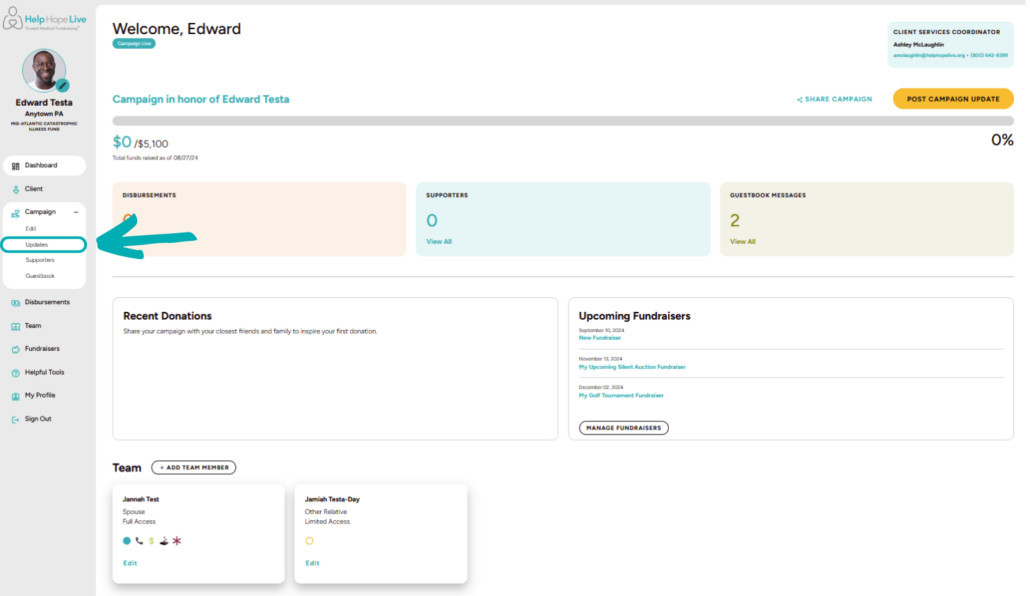
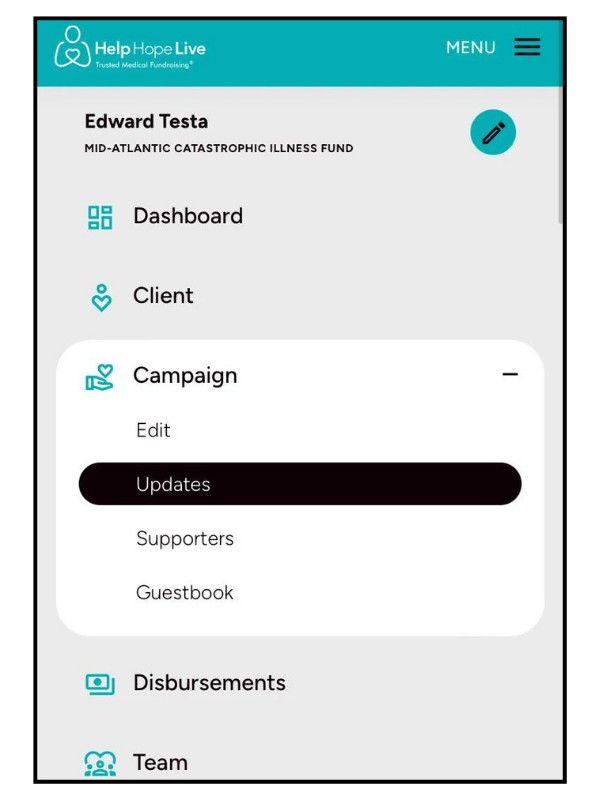
Use Campaign/Updates to add or manage updates.
Updates menu on desktop:
Updates menu on mobile:
View Supporters
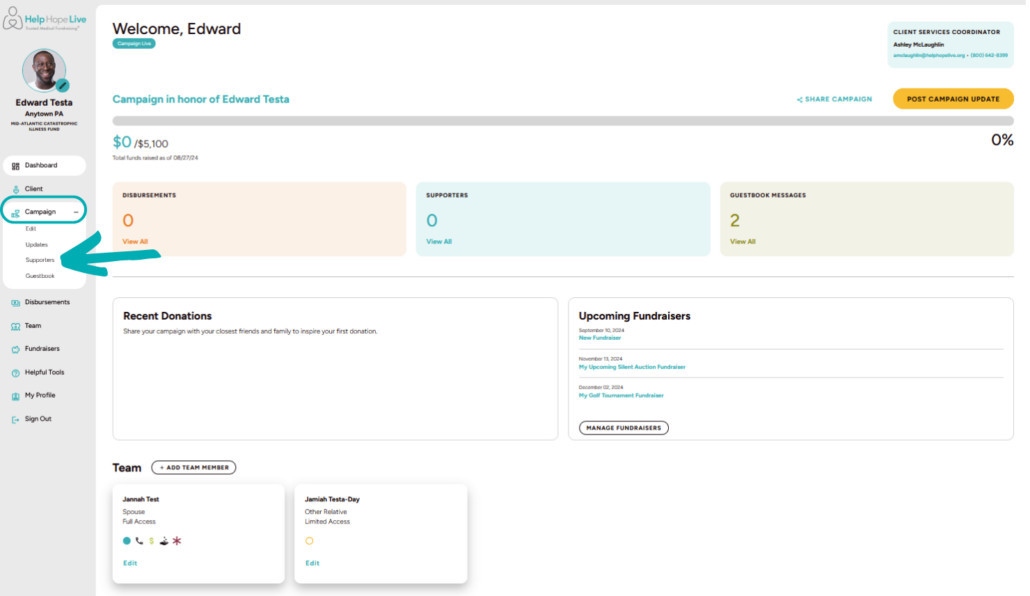
Use Campaign/Supporters to access the Supporters page and see a list of supporters and donations made in your honor.
Supporters menu on desktop:
Supporters menu on mobile:
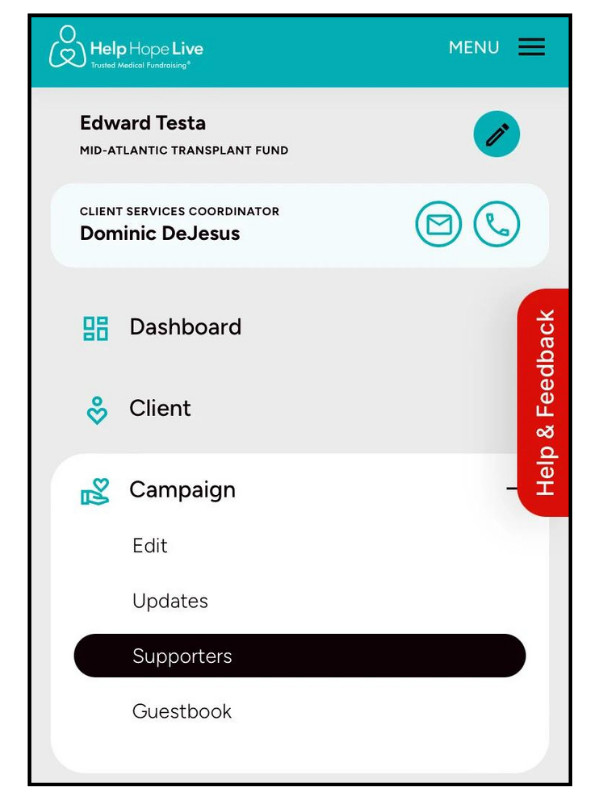
Manage Your Guestbook
Use Campaign/Guestbook to view and manage messages.
Guestbook menu on desktop:
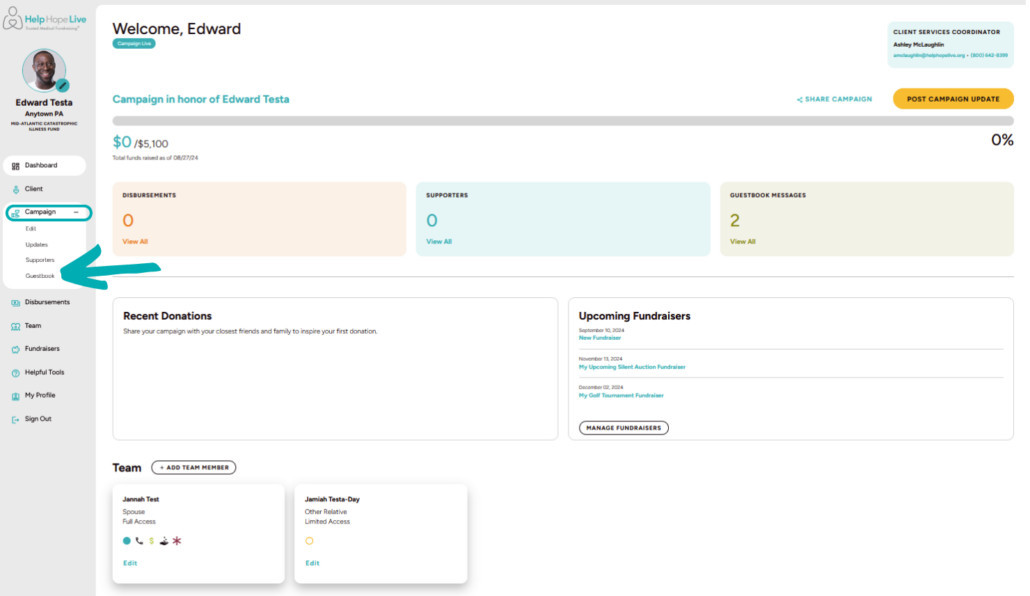
Guestbook menu on mobile:
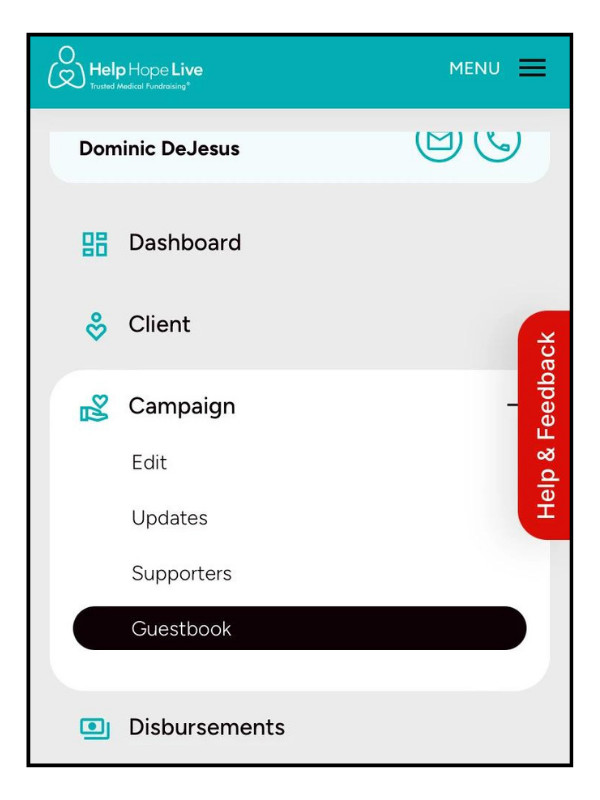
See Disbursements
Use Disbursements to see the fund requests Help Hope Live has fulfilled in your honor.
If your campaign has not yet been medically verified, you must complete that step first.
Disbursements menu on desktop:
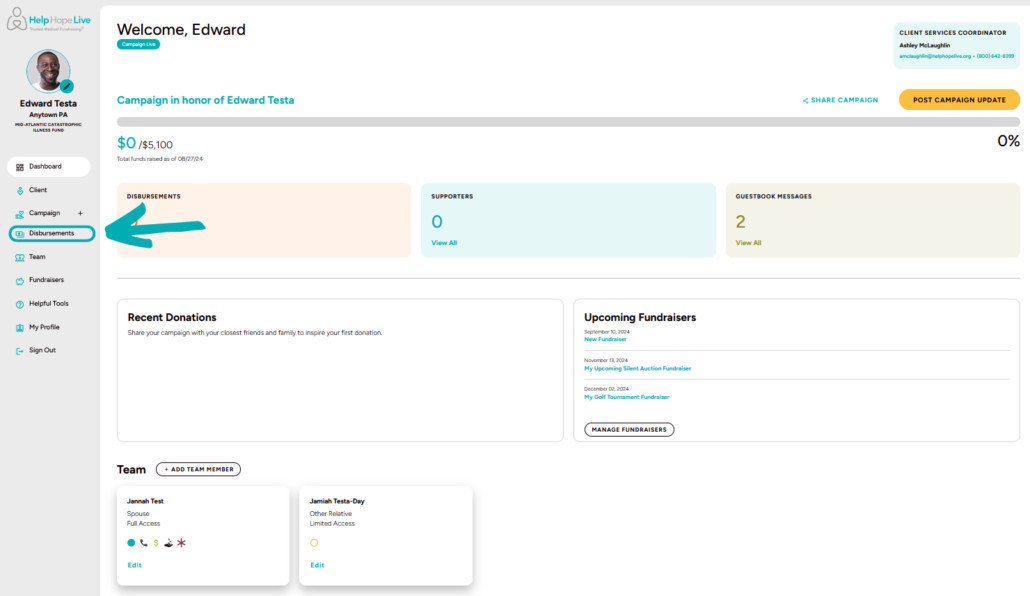
Disbursements menu on mobile:
Add and Manage Your Team
Use Team to view and manage your fundraising team members.
Team menu on desktop:
Team menu on mobile:
Select Your Primary Contact and Emergency Contact
On the Team page, we’ll ask you to designate a Primary Contact and Emergency Contact for your campaign. You can select yourself as the Primary Contact.
Primary & emergency contacts on desktop:
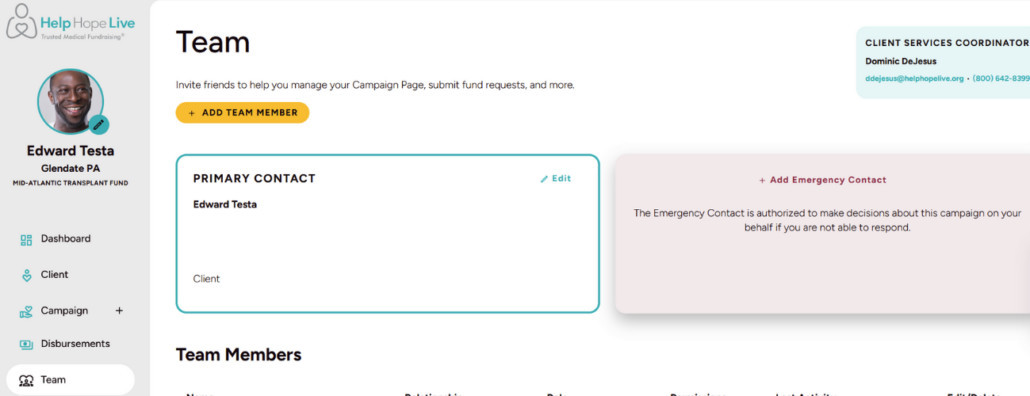
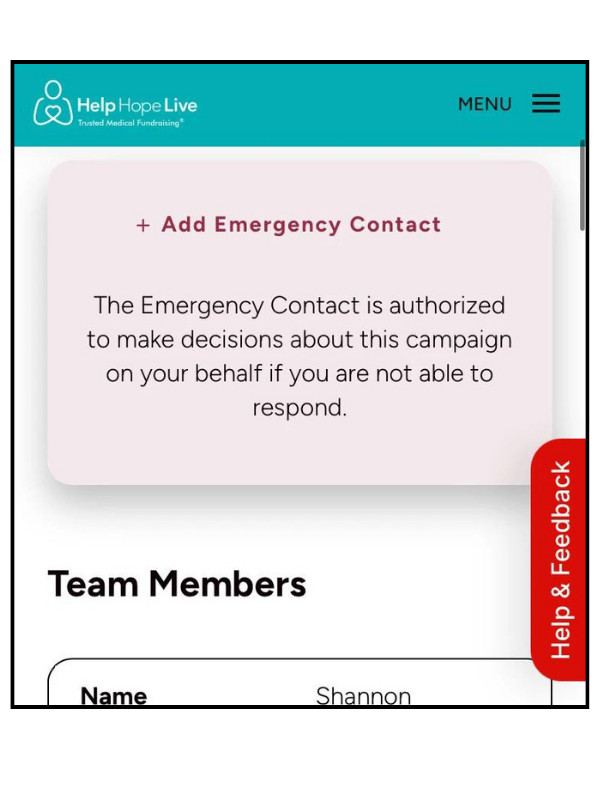
Emergency contact on mobile:
Manage Fundraisers
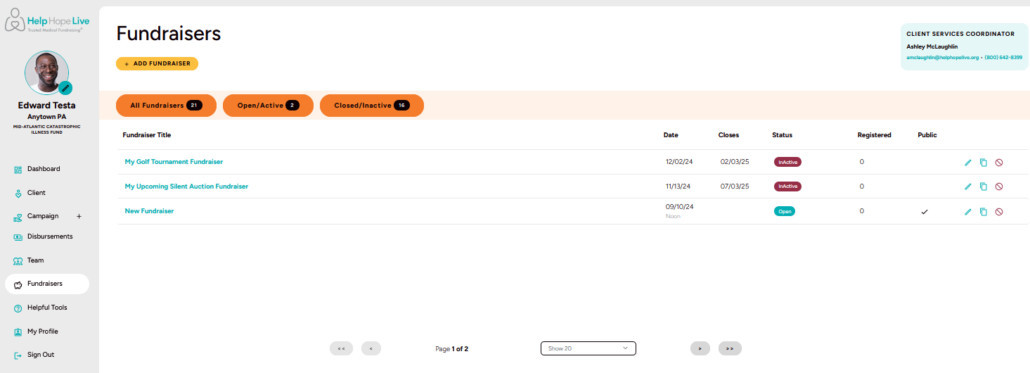
Use Fundraisers to add or manage fundraisers.
Fundraisers on desktop:
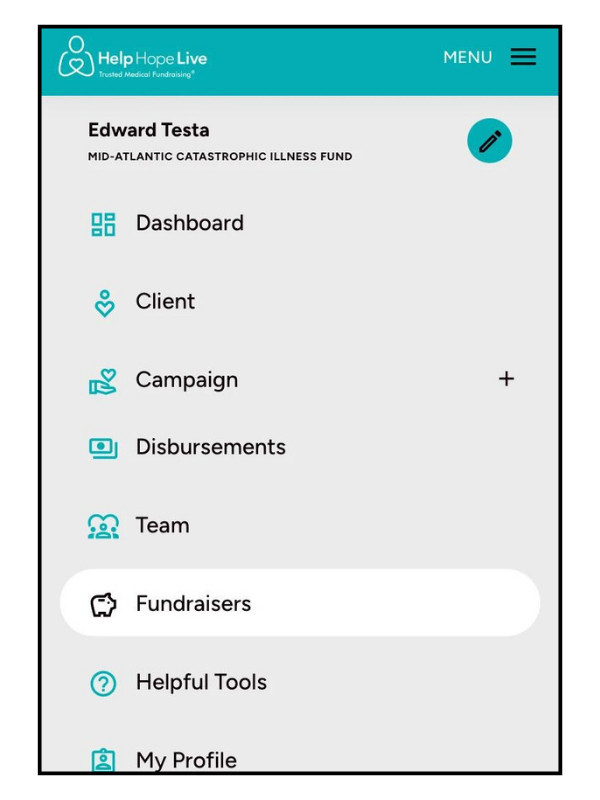
Fundraisers menu on mobile:
Click the buttons to view All Fundraisers, only Open Events, or only Closed Events.
Click the fundraiser title or the pencil icon to edit a fundraiser.
Click the delete icon to delete a fundraiser.
Click the copy icon to duplicate a fundraiser.
Add a fundraiser on mobile:
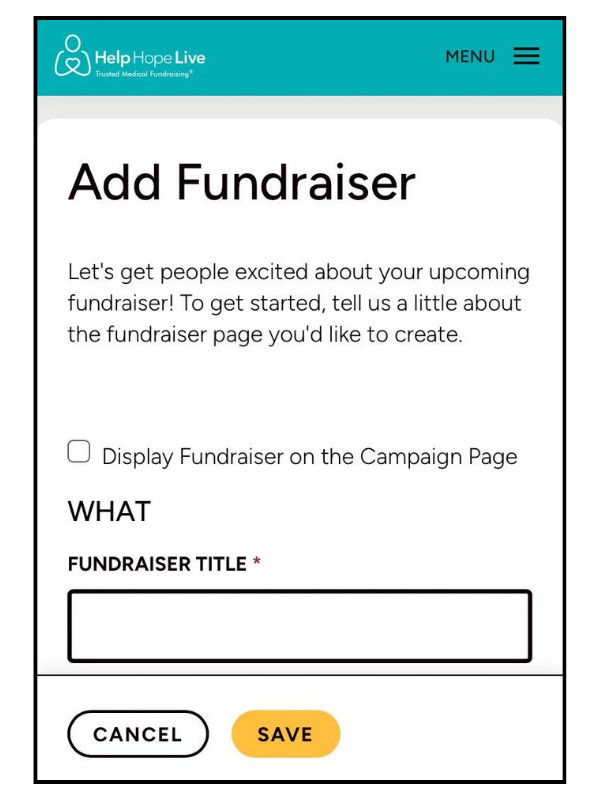
What’s new:
- You can now select whether a fundraiser is One Day, Multiple Days, or Ongoing.
- You can select whether a fundraiser is virtual or at a physical location.
- You can select yourself as the fundraiser organizer to automatically fill in your contact information.
Access Helpful Tools and Forms
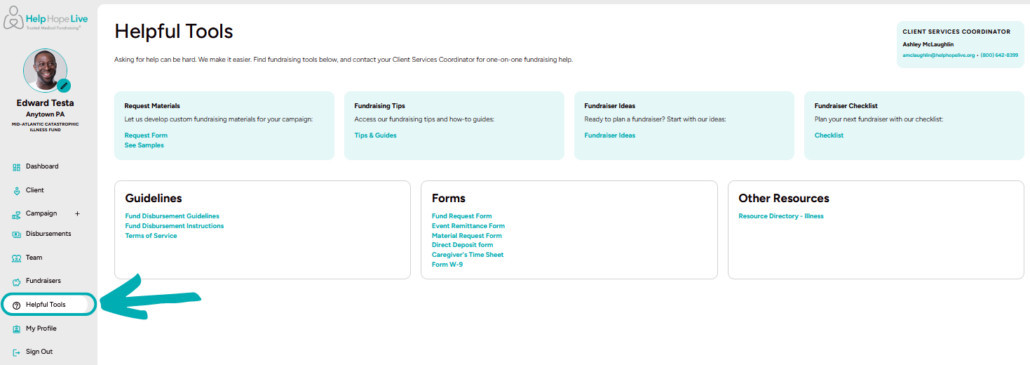
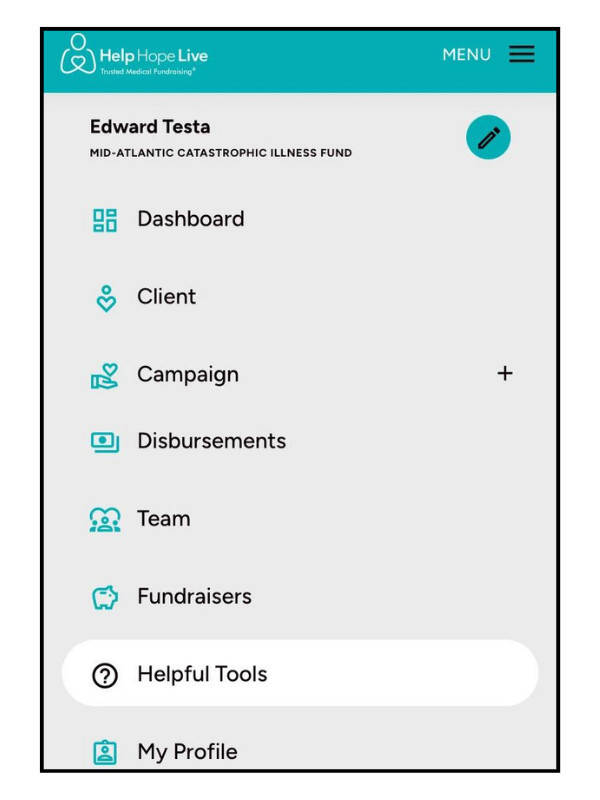
Use Helpful Tools to find fundraising tips, guides, and forms.
Helpful Tools on desktop:
Helpful Tools menu on mobile:
Change Your Password
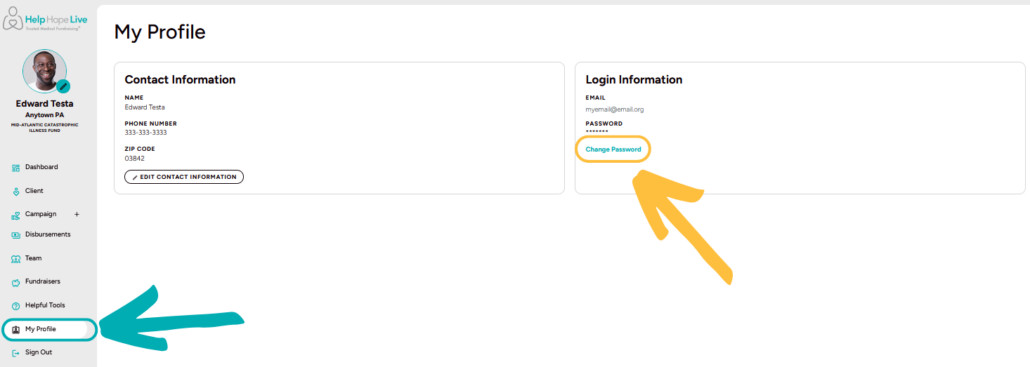
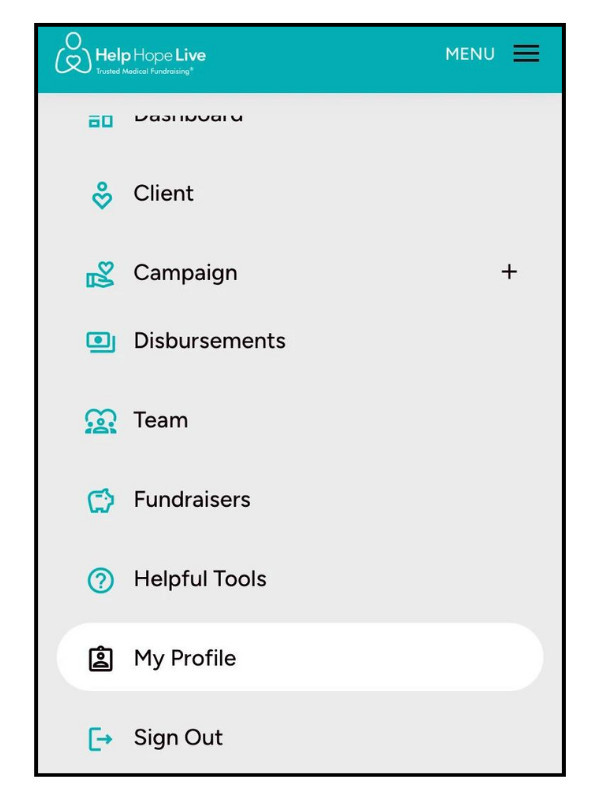
Use My Profile to change your password.
My Profile on desktop:
My Profile on mobile:
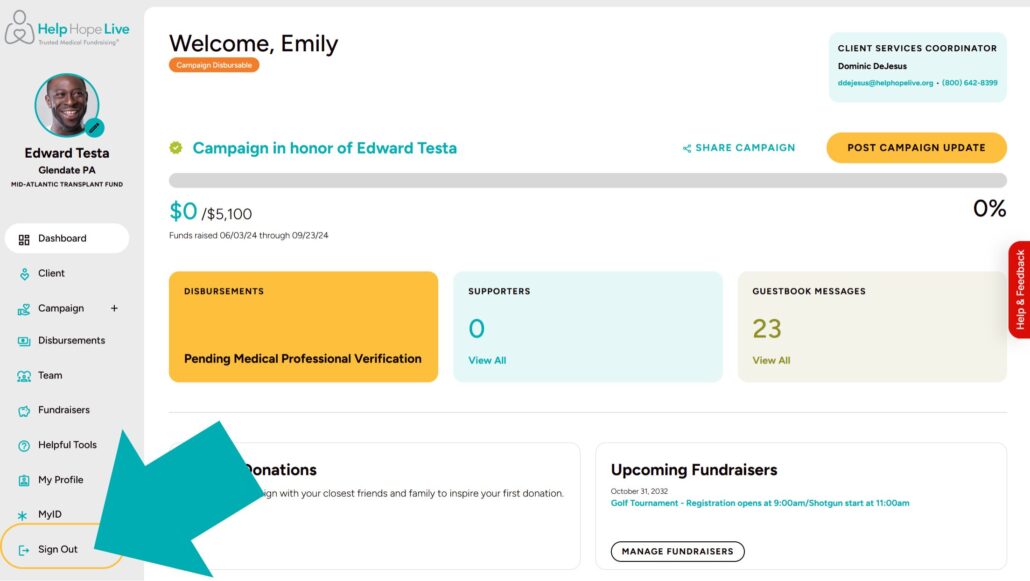
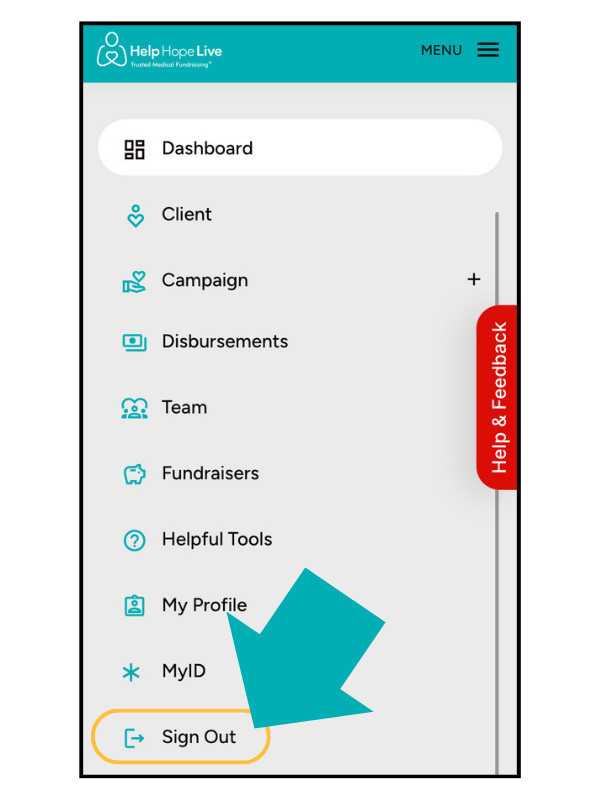
Sign Out
Use Sign Out if you’d like to sign out.
You will have to sign back in using your email address and password the next time you want to access your Dashboard and Campaign Page.
Get Help & Leave Feedback
Need technical help with our platform? Have feedback for us?
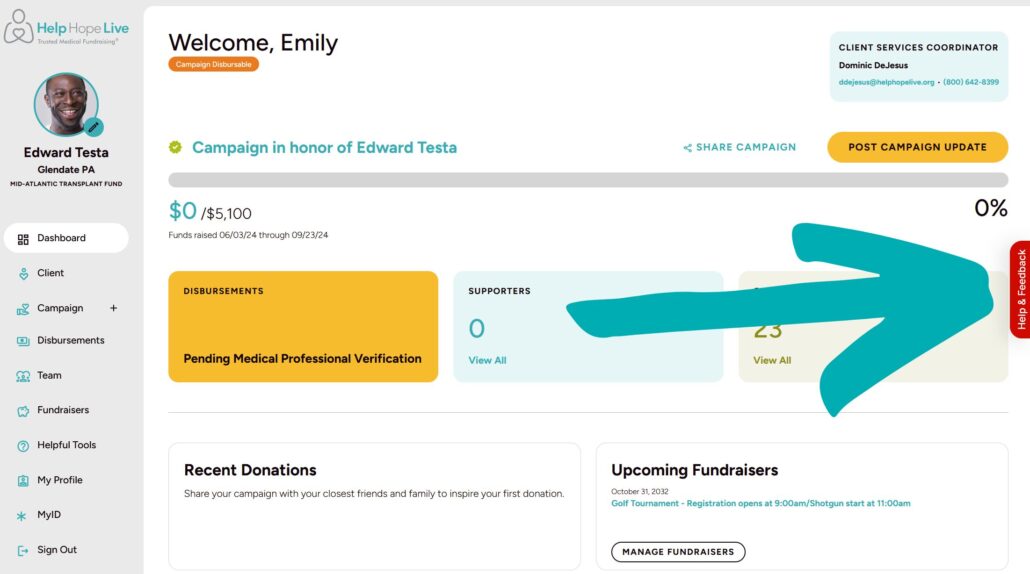
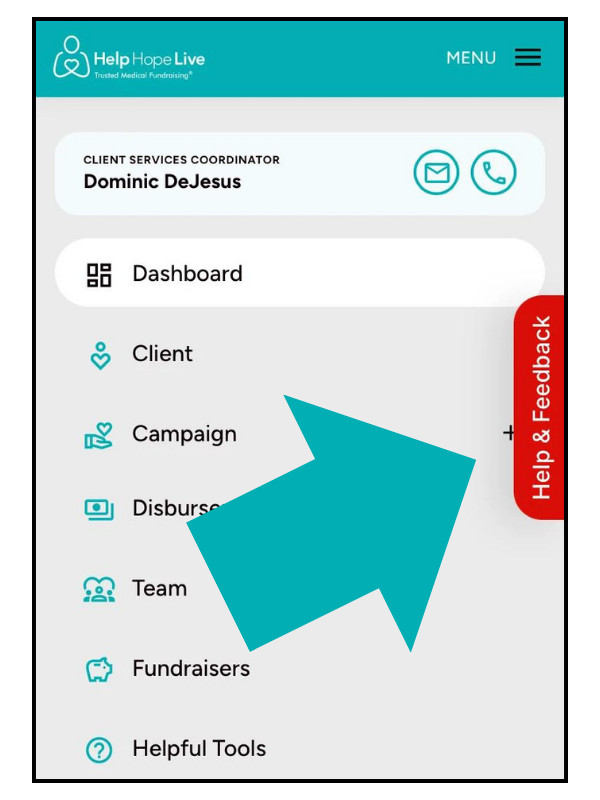
Click the red Help & Feedback tab on any page.
Help & Feedback red tab on desktop:
Help & Feedback red tab on mobile:
Your submission will automatically include info about the page you’re viewing and what browser and device you’re using to connect so we can help you efficiently.