desktop computer

We are so glad you’ve found Help Hope Live for trusted medical fundraising. Let’s get to know your Campaign Dashboard & Editor!

Last Updated in January 2026

In this guide, you’ll learn how to log in, use your Dashboard, and use your Campaign Editor from your desktop devices. Click the button below to access our Mobile guide instead:

1. Log in.

Go to clients.helphopelive.org and log in with your email address and password:
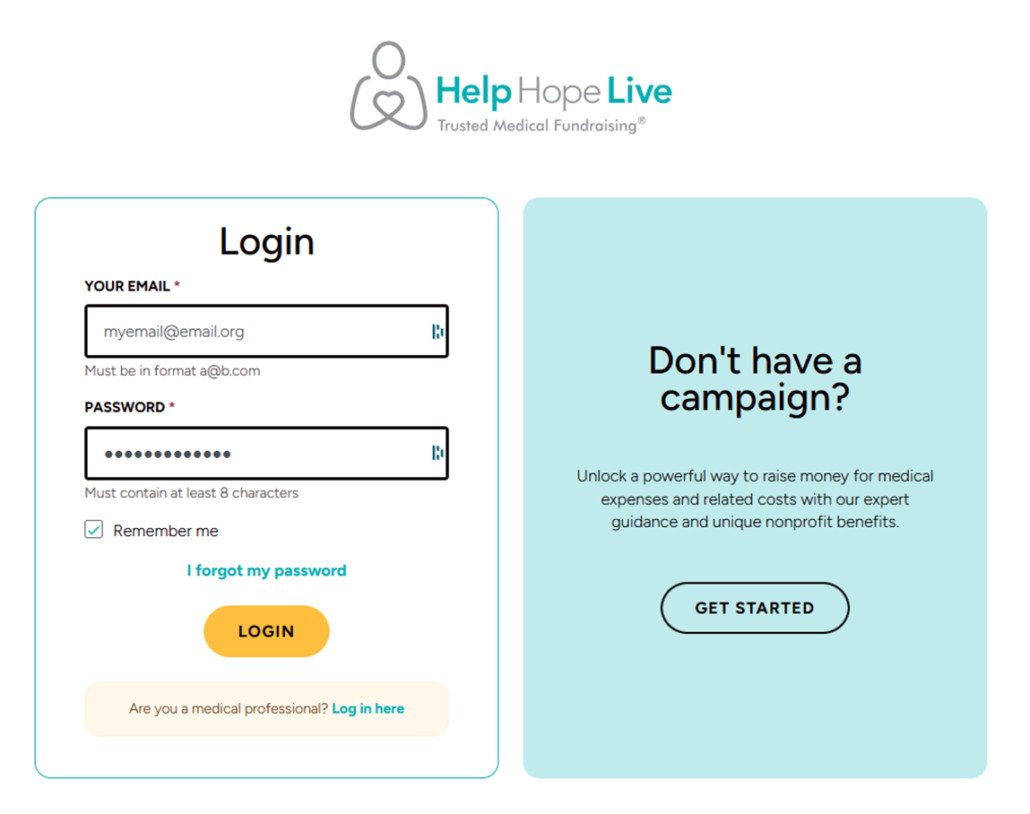
The login page for clients.helphopelive.org

2. Visit your Dashboard.

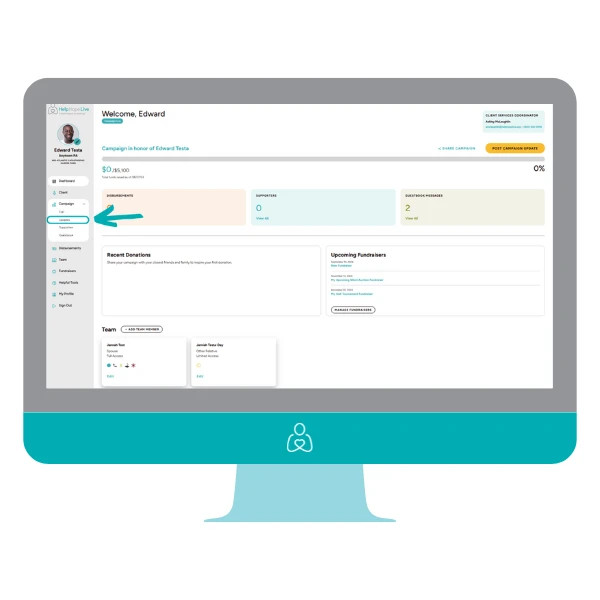
Once you’re logged in, you’ll see your Campaign Dashboard:
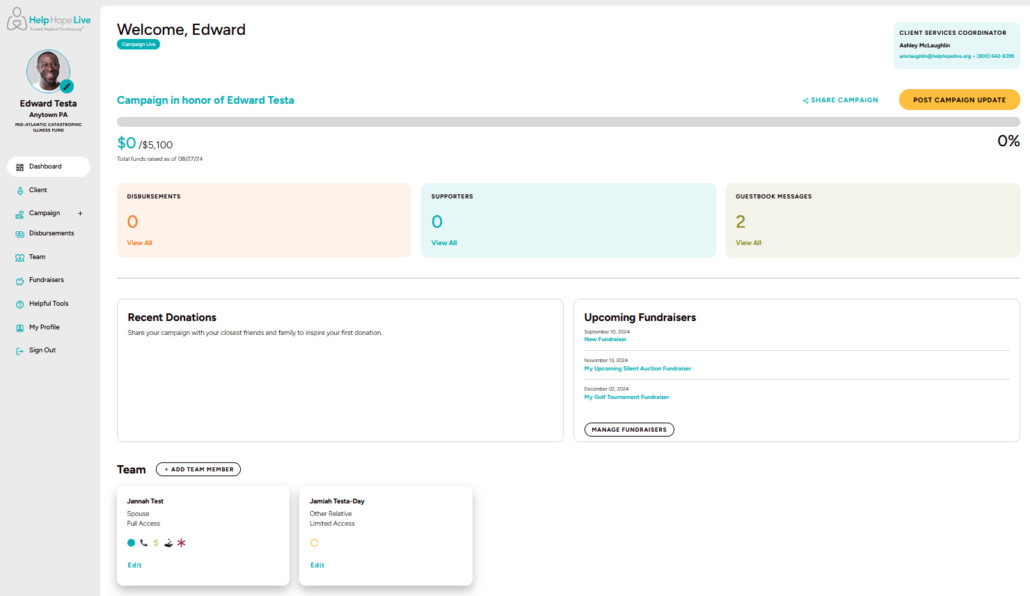
The Dashboard view at clients.helphopelive.org

Your Dashboard will show you the latest updates from your campaign, including funds raised in your honor, recent donations, disbursements, upcoming fundraisers you’re planning, and more.

You’ll also see any important messages or updates from Help Hope Live at the top of your Dashboard.

3. Find contact info for your Client Services Coordinator at the top-right of your Dashboard:
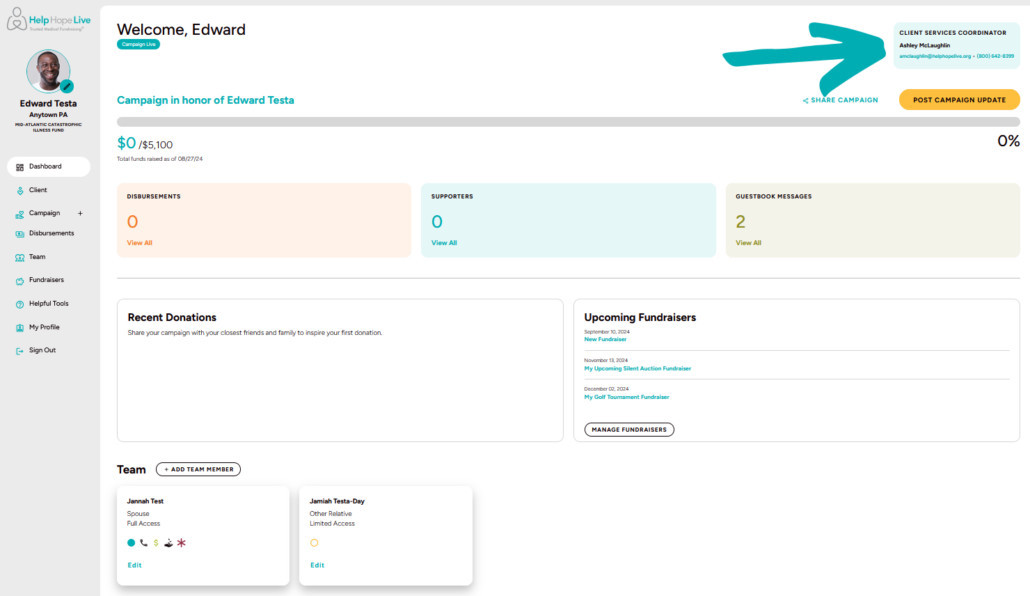
The Dashboard view at clients.helphopelive.org with an arrow indicating where to find phone number, email, and name for Client Services Coordinator at the upper right corner

4. Edit your Campaign Page.

Click the pencil icon at the top-left of your screen or use Campaign/Edit to start customizing your Campaign Page:
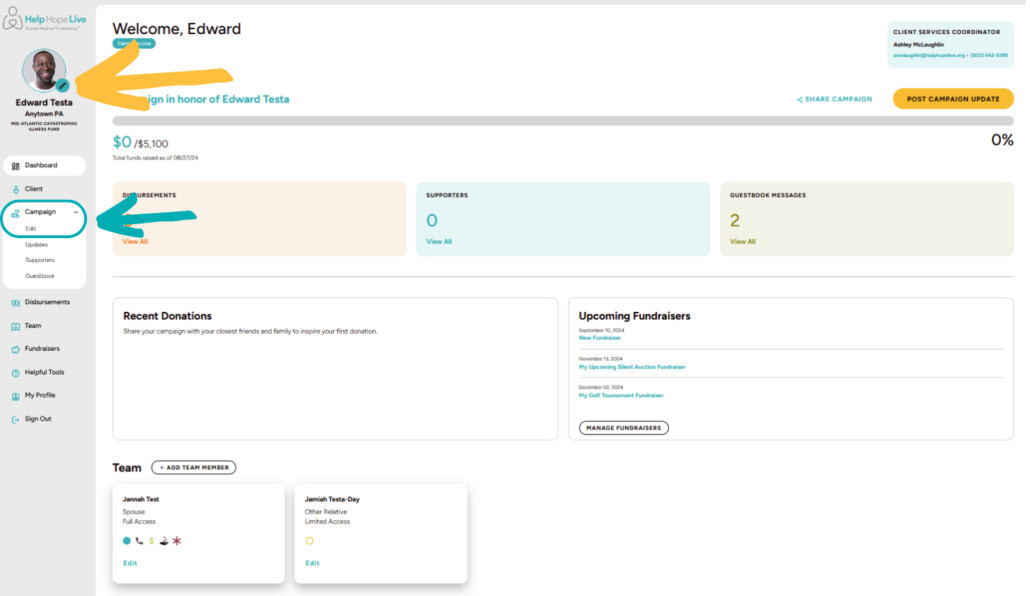
The Dashboard view at clients.helphopelive.org with an arrow indicating where to find the pencil icon to edit your Campaign Page and the Campaign dropdown menu.

Next, you can:

  • Upload a profile picture that will display on your Campaign Page.
  • Set a fundraising goal and choose whether to display the goal on your Campaign Page.
  • Enter a campaign title—a headline to get visitors interested in your campaign.
  • Customize your Campaign Story. We’ve included information about fundraising with Help Hope Live for you. Customize the rest of your story the way you want to—use our Campaign Story Worksheet to get started.
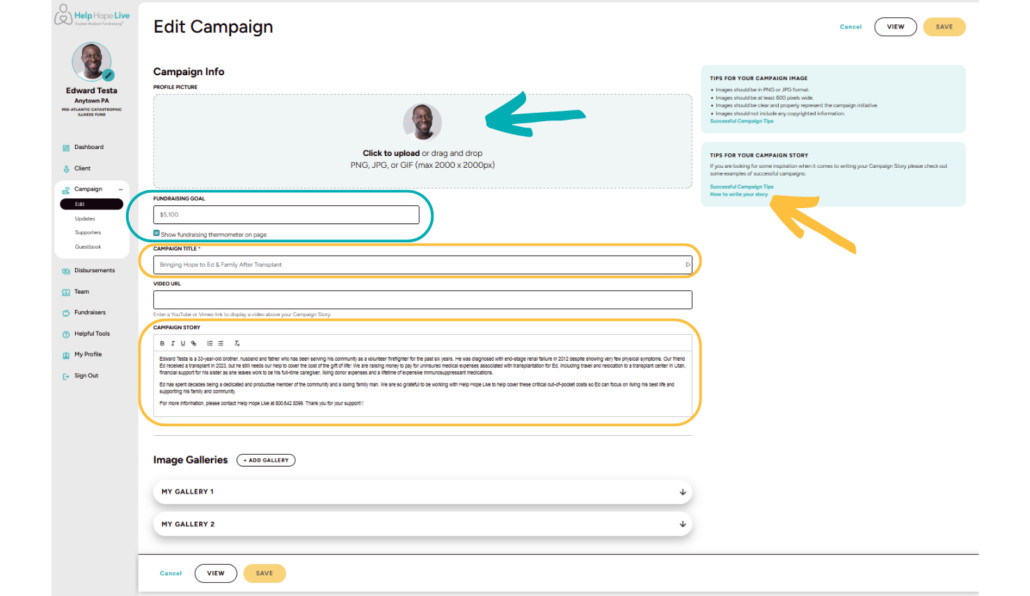
Help Hope Live Campaign edit options include customizing a photo, adding a goal, Campaign Title, and Campaign Story plus where to find tips for writing your story.

5. Add Image Galleries.

You can add image galleries to help visitors get to know you and your campaign plus showcase updates, milestones, and fundraisers.
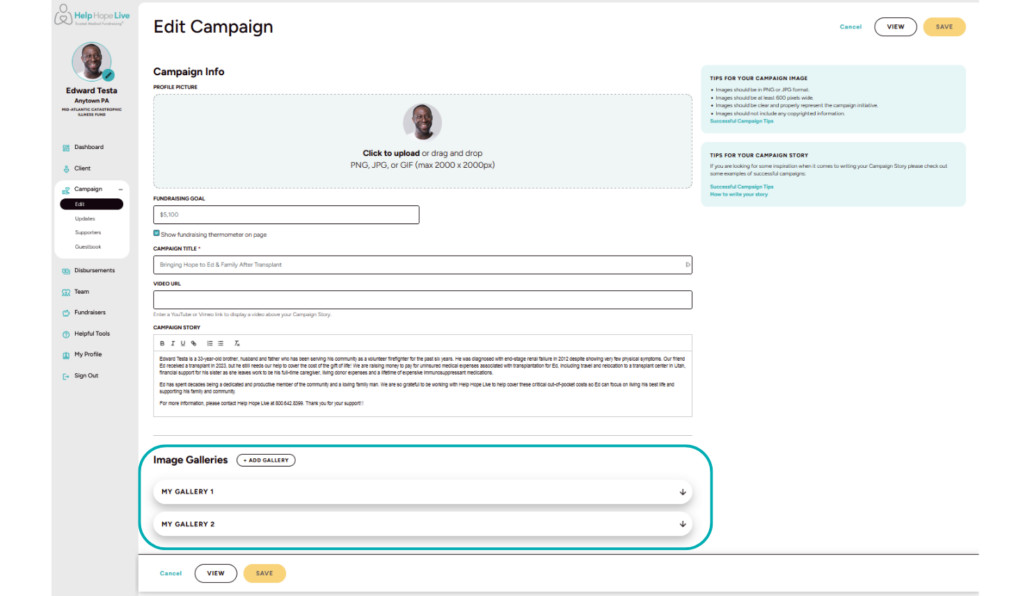
The Image Galleries option in the Campaign/Edit menu at clients.helphopelive.org

To get there:

  • From Campaign/Edit, scroll down to Image Galleries.
  • Click Add Gallery to name your first gallery.
  • Click the arrow next to the name of the gallery, then click Edit Gallery.
  • Choose whether to display your gallery on your Campaign Page.
  • Upload photos, add captions, and save.
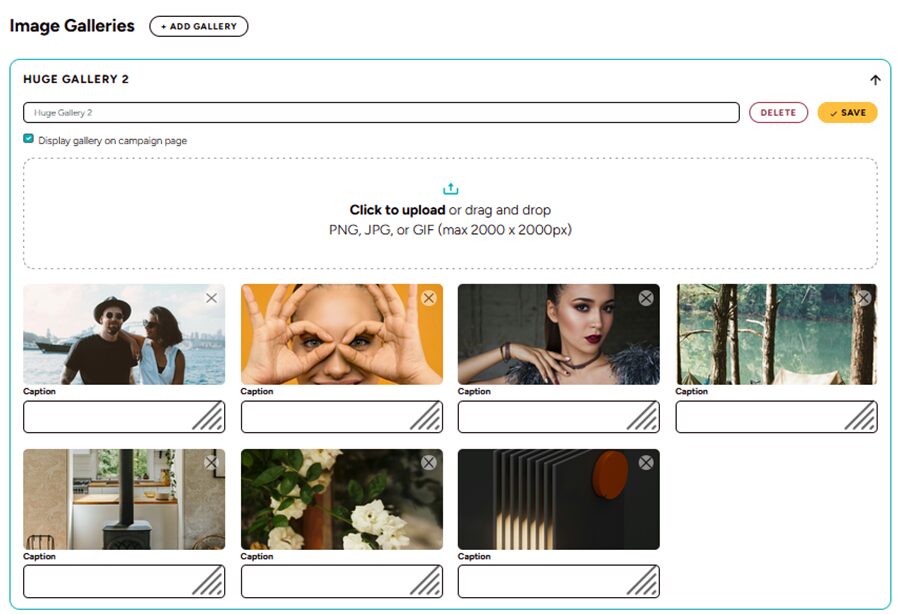
Sample Image Galleries on a Help Hope Live Campaign Page with the option to delete, save, or upload and add captions.

6. Post an update.

From your Dashboard, click Post Campaign Update:
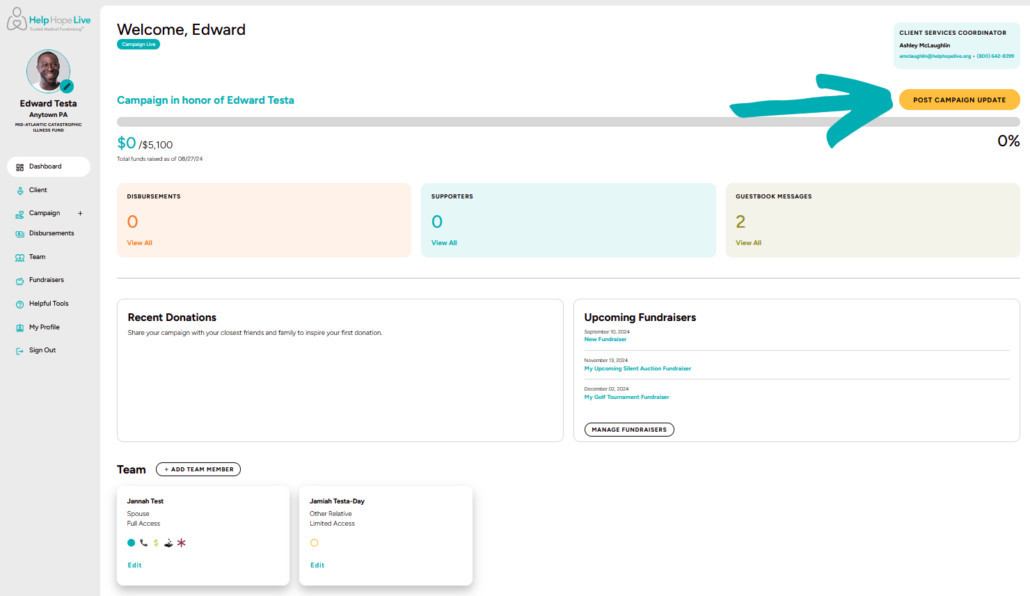
An arrow shows where you can Post Campaign Update using a yellow button at the upper-right of the Help Hope Live Dashboard.
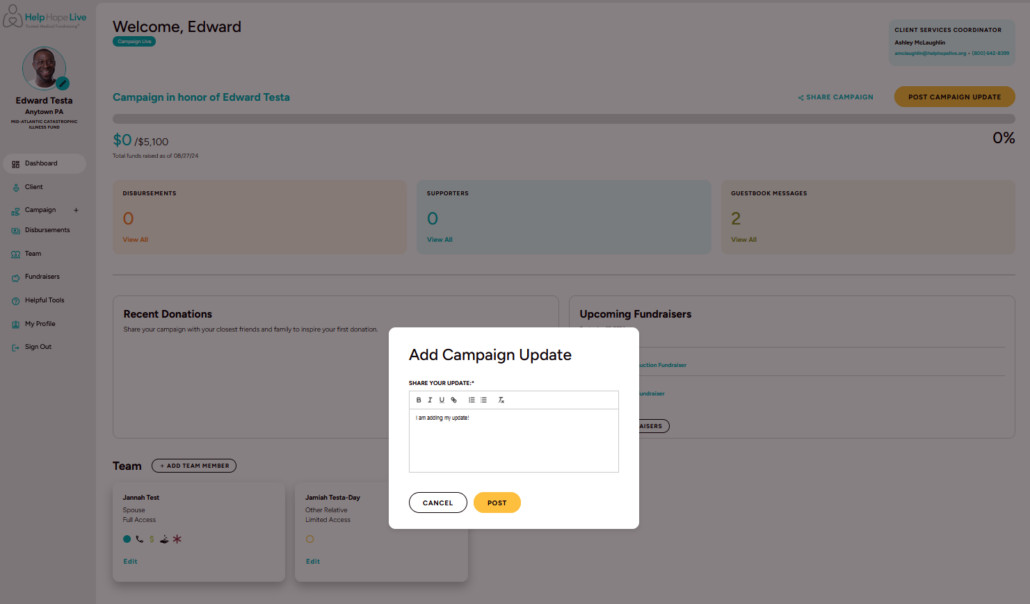
Help Hope Live client portal on desktop - popup to Add Campaign Update with room for text, formatting options, and a gold Post button.

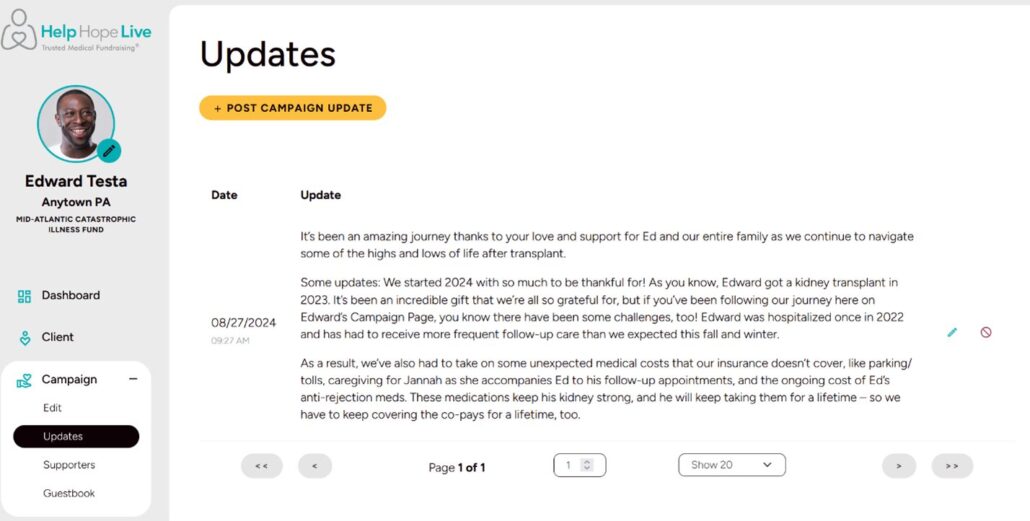
You can see and edit all your updates under Campaign/Updates:
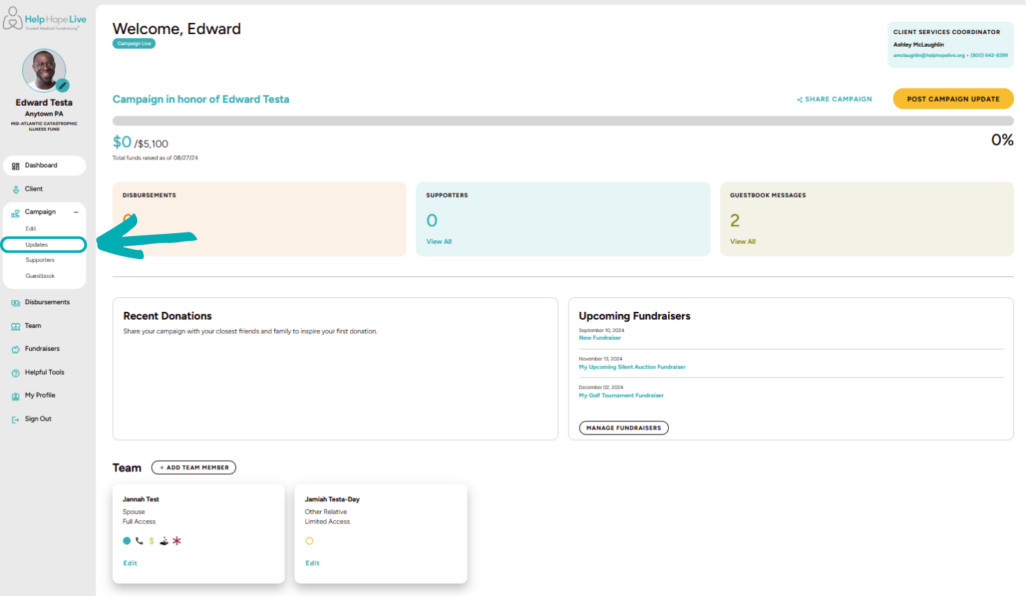
Help Hope Live client portal on desktop - arrow points to the Updates option under Campaign in the menu.
Help Hope Live client portal on desktop - the Updates page under the Campaign menu.

7. View your Campaign Page.

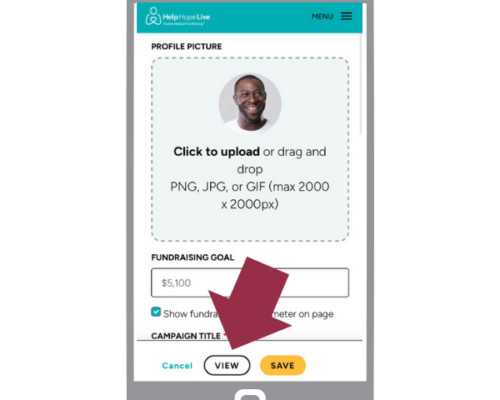
See how your Campaign Page looks to visitors: go to Campaign/Edit and click View.

You’ll also see a View option at the bottom of any Edit/Campaign screen:
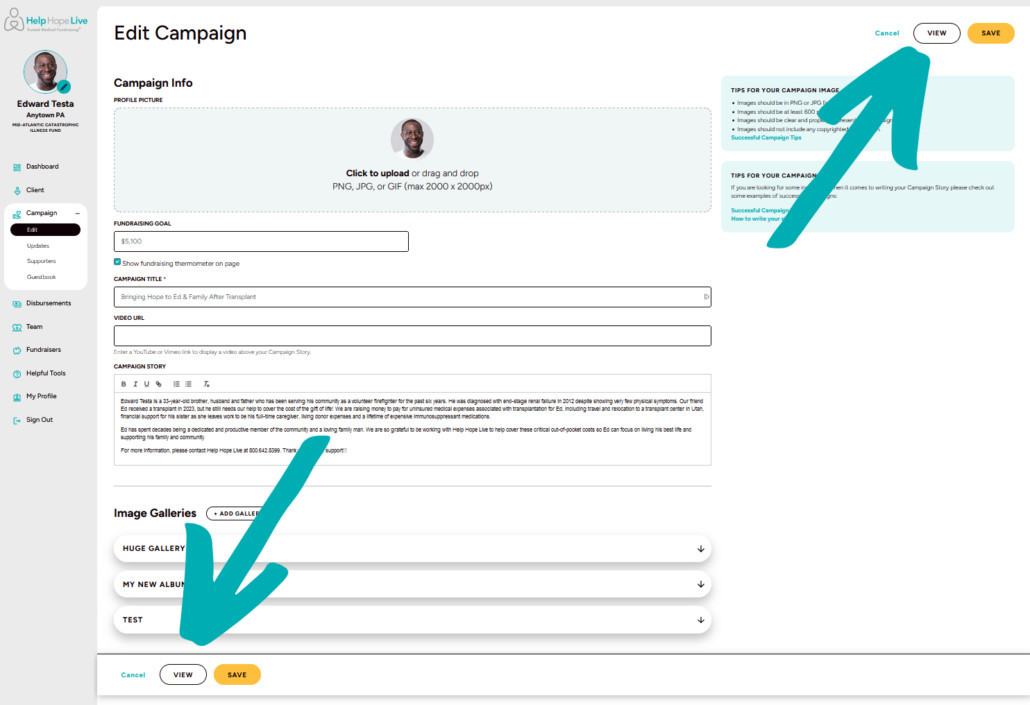
Help Hope Live client portal on desktop - arrows point to the white VIEW button at the bottom of the page and the top right of the page.
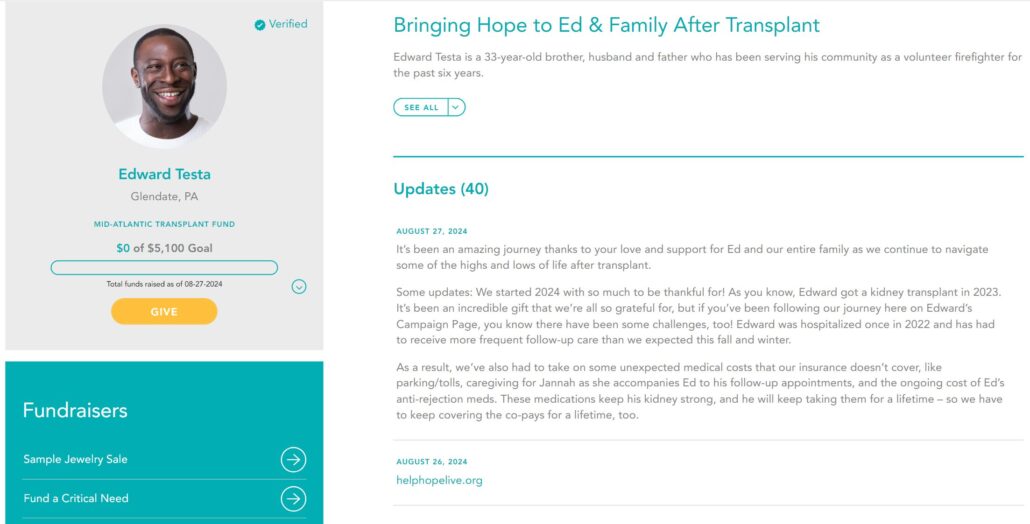
Screenshot of a sample live Campaign Page for Edward Testa with Fundraisers, a headline about his transplant, and Updates from 2024 along with a profile picture.

8. Share your Campaign Page.

  1. Once you’ve customized your Campaign Page, you’re ready to spread the word!

Go to your Dashboard, then click Share Campaign:
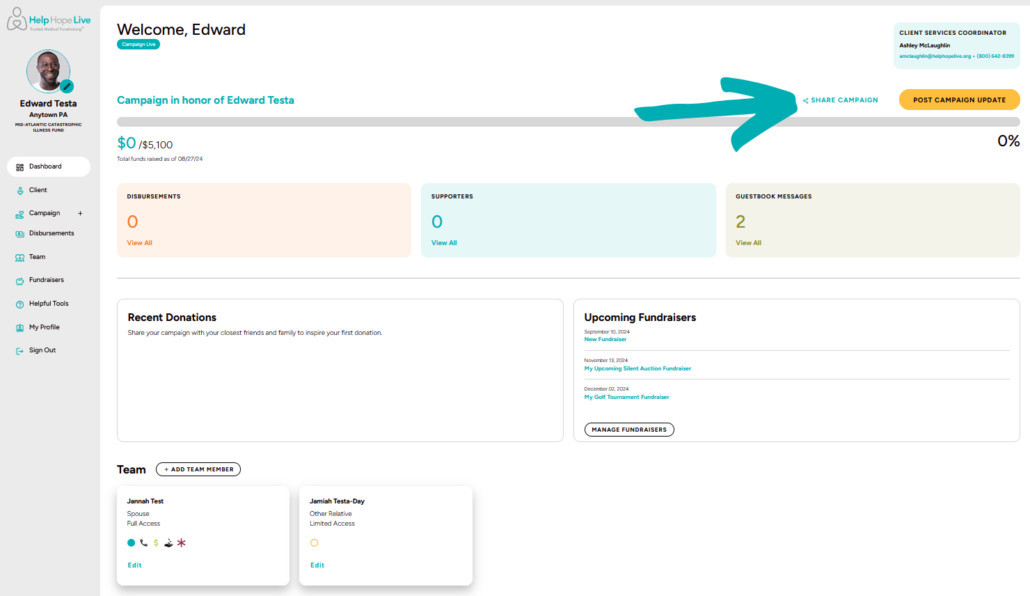
Help Hope Live client portal on desktop - arrow points to the Share Campaign option at the upper right on the Dashboard page.

You can copy your Campaign Page link or click to share to Facebook, X (Twitter), or LinkedIn.

Use our guides to share on Instagram or TikTok. Find additional social sharing guides and tips here.
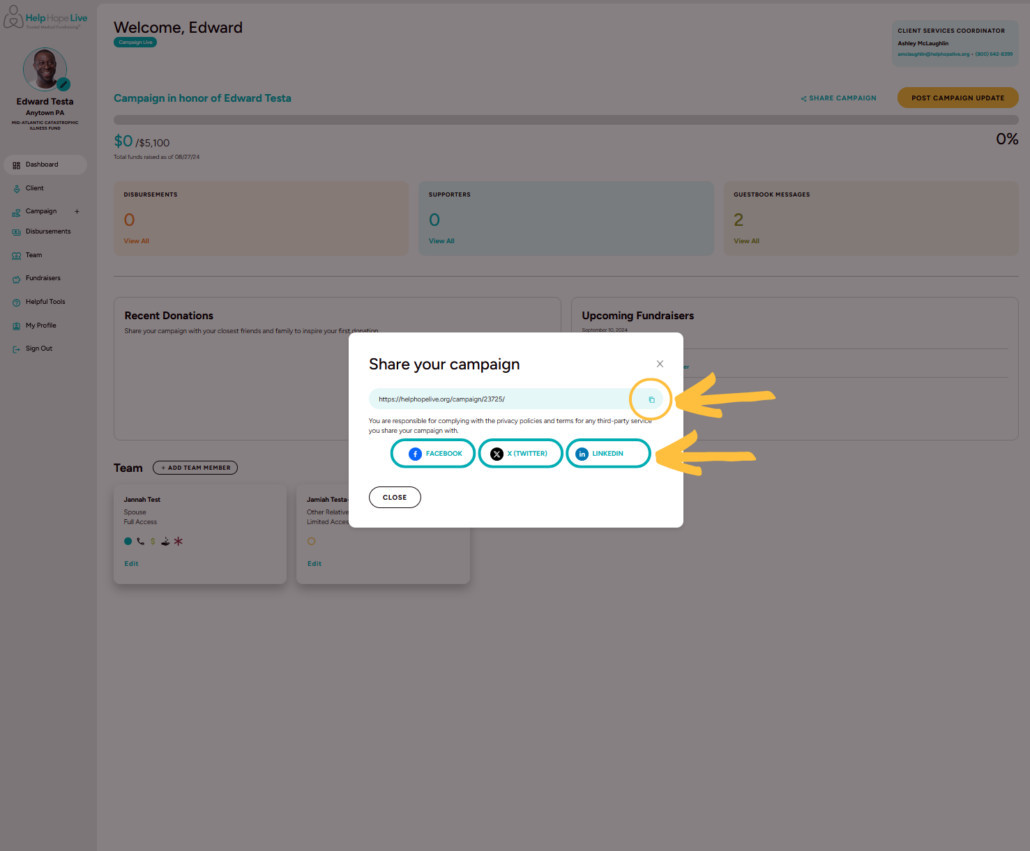
Help Hope Live client portal on desktop - popup to Share Your Campaign with option to copy the URL link or share to Facebook, X Twitter, or LinkedIn.

9. Submit a fund request and access the Fund Request Portal (Disbursable campaigns only).

Please note: the Fund Request Portal is only visible to Disbursable campaigns. That means you won’t see the following menu options until your campaign has been medically verified.

Use Requests to access the Fund Request Portal (click here for our complete guide). You can submit a fund request, track existing requests, and more:
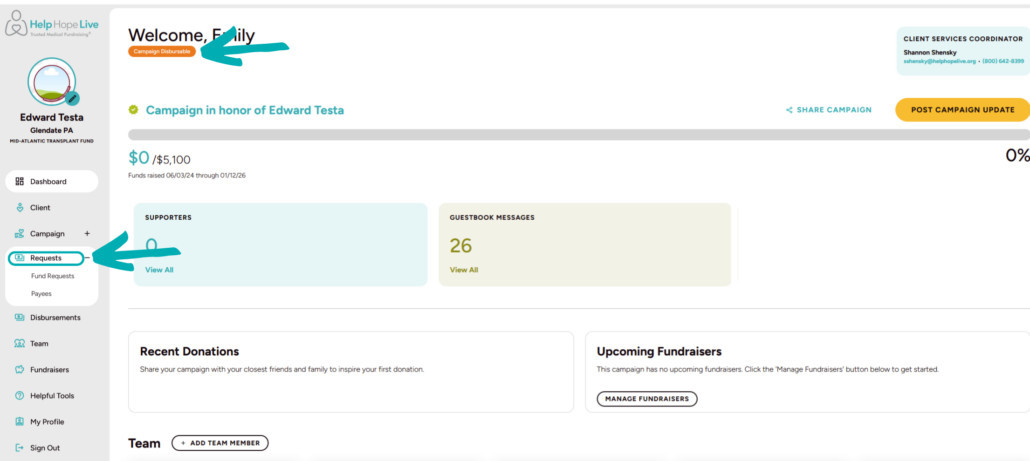
Help Hope Live client portal on desktop - arrows point to Campaign Disbursable status and Requests option on the left menu.

10. Add team members.

Use Team to add team members to your campaign:
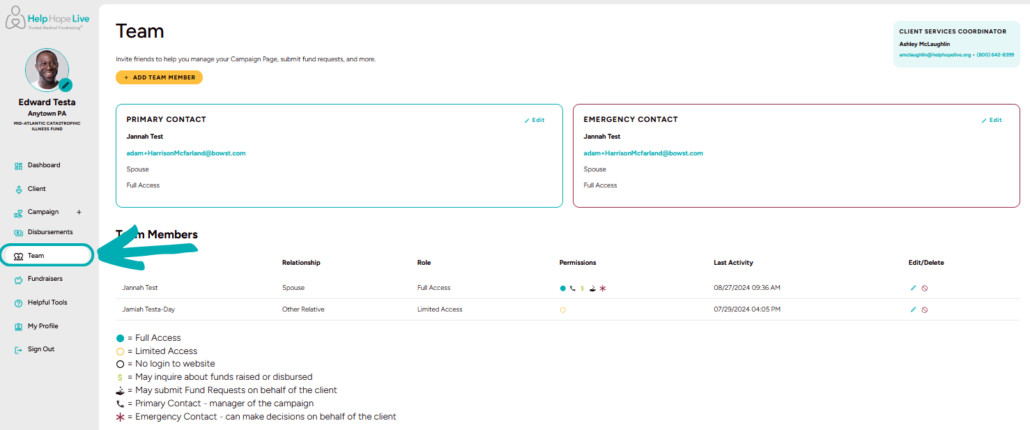
Help Hope Live client portal on desktop - Team menu option is highlighted with screenshot of the Team page to add and manage team members and their permissions.
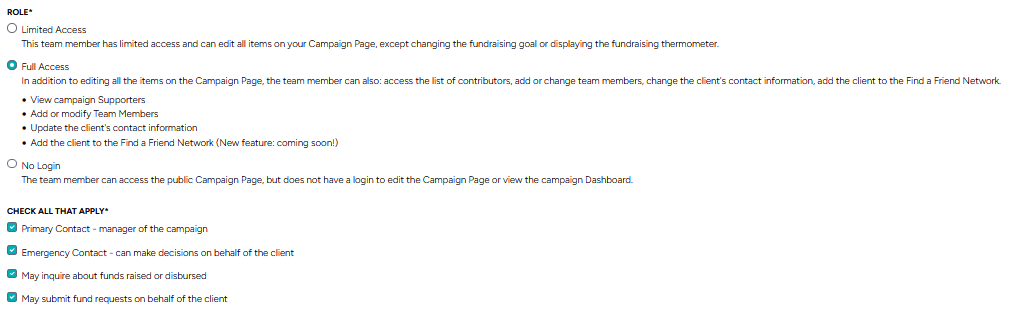
Help Hope Live client portal on desktop - roles and permissions for team members.

From here:

  • Click the Add Team Member button to add a new team member.
  • Add contact information for each new team member. You control each team member’s role and permissions.
  • You can choose to give team members access to the Dashboard and Campaign Page with their own email address and password.
  • We’ll ask you to designate team members to become your Primary Contact or your Emergency Contact.
  • You can also choose whether each team member can inquire about funds raised and disbursed or submit a fund request on your behalf.

11. Add a fundraiser.

  1. Planning an online or in-person event with your Coordinator? Use the Fundraisers page to add upcoming fundraisers to your Campaign Page.

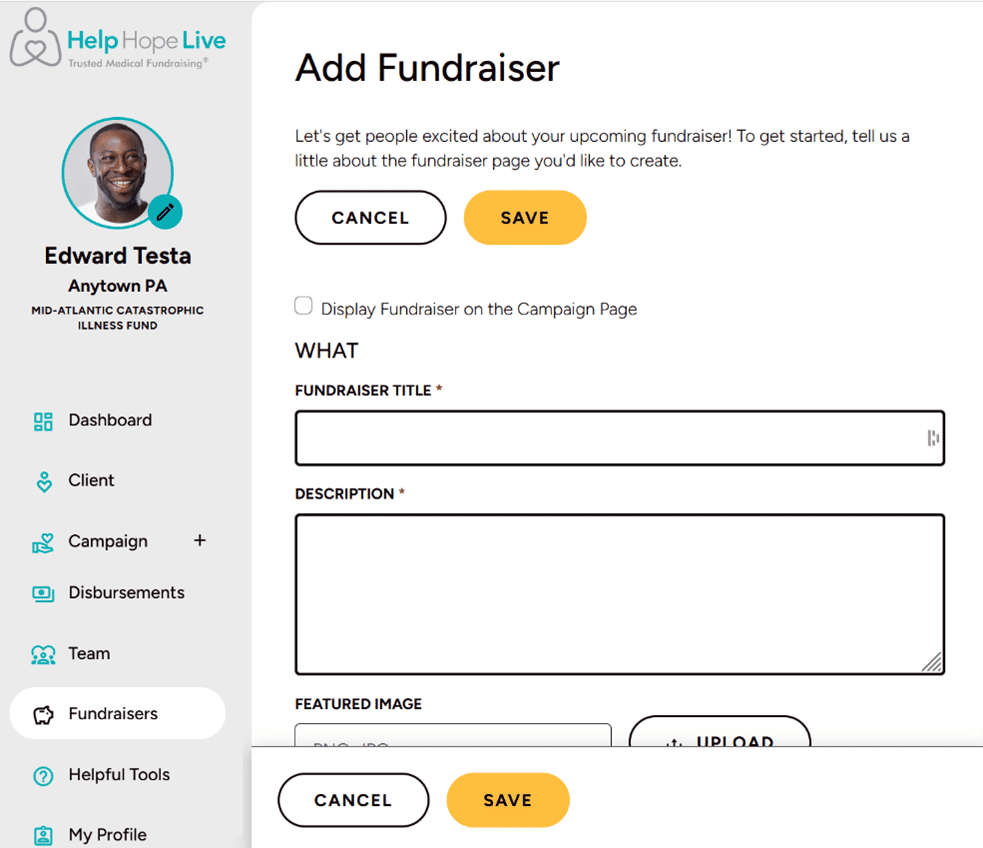
Click Add Fundraiser and customize your fundraiser page with details, images, dates, location information, and online registration options as needed:
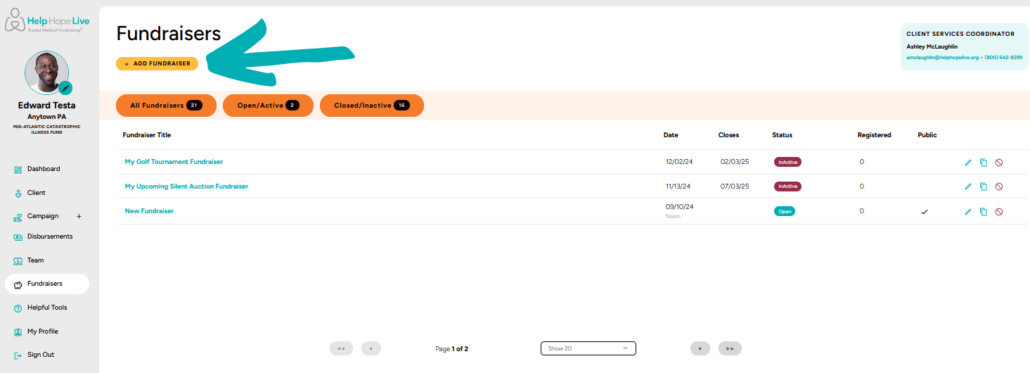
Help Hope Live client portal on desktop - Fundraisers page with an arrow pointing to the gold Add Fundraiser button.
Help Hope Live client portal on desktop - Add Fundraiser page on the Fundraisers menu.

12. Access Helpful Tools.

You can find fundraising tools, forms, and guides on the Helpful Tools page, including fundraiser ideas, guidelines for disbursement, Fund Request Forms, and more:
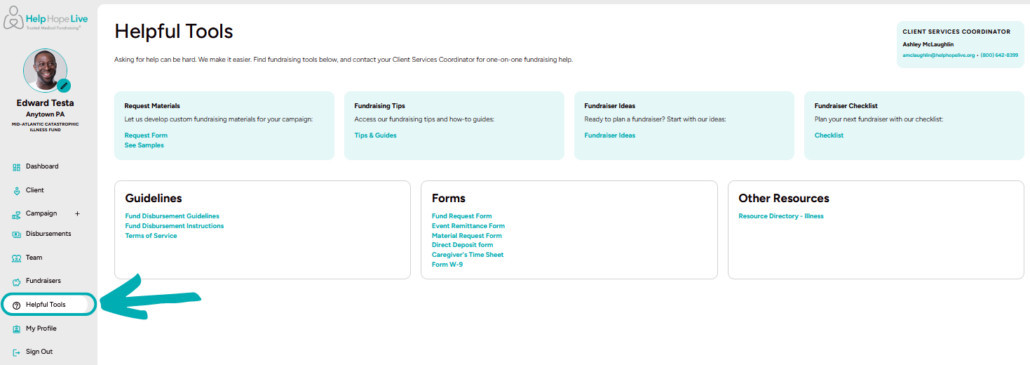
Help Hope Live client portal on desktop - arrow points to Helpful Tools menu option with screenshot of Helpful Tools page.

13. Edit your client profile.

View or make changes to your client profile under Client, including name and nickname, location or temporary address, email, phone number, preferred language, verifying medical professional, insurance information, financial information, and Agreements:
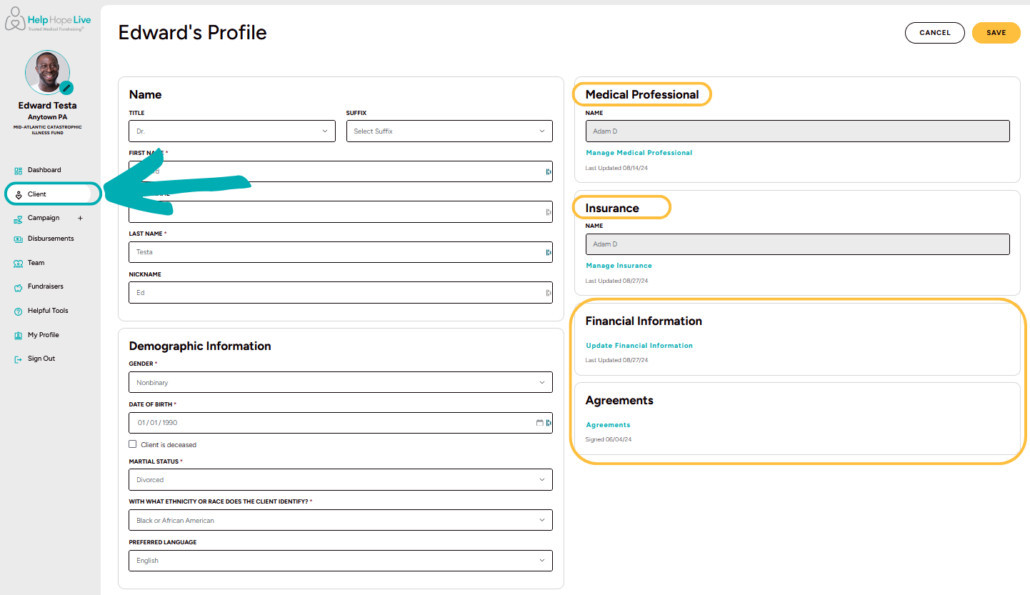
Help Hope Live client portal on desktop - arrow points to Client menu option with highlights on the Profile page for Medical Professional, Insurance, Financial Information, and Agreements.

14. Change your password.

Use the My Profile option to change your password:
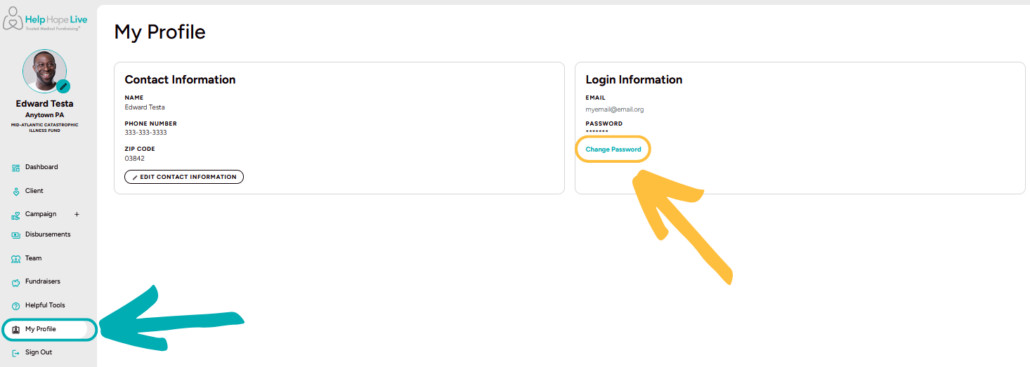
Help Hope Live client portal on desktop - arrows point to the My Profile menu option and the Change Password option on the My Profile page.

Get Support & Leave Feedback

Need technical help with our platform? Have feedback for us?

Click the red Help & Feedback tab while navigating our client portal. It looks like this:

Red Help & Feedback tab that appears on Help Hope Live pages after client login.

Your submission will automatically include info about the page you’re viewing and what browser and device you’re using to connect so we can help you efficiently.

Let’s Fundraise Together!

Let your Coordinator know how our team can support your fundraising efforts and help you customize your Campaign Page.

You can always find contact information for your Coordinator on your Dashboard.

Written by Emily Progin

Permobil logo

Permobil

The Do Gooders logo

The Do Gooders

Rosenblatt Foundation logo

The Esther & Pedro Rosenblatt Foundation 

Lindo Foundation logo

Lindo Foundation

Costco logo

Costco

Foxwynd logo

Foxwynd Foundation

SureHands Lift & Care logo

SureHands Lift & Care

Stout logo

Stout

Kennedy Krieger International Center for Spinal Cord Injury logo

Kennedy Krieger International Center for Spinal Cord Injury

Jefferson Health logo

Jefferson Health

Independence Blue Cross logo

Independence Blue Cross

DigiStream logo

DigiStream

Glenmede logo

Glenmede

Brandywine Realty Trust

United Access logo

United Access

Gift of Life Howie's House logo

Gift of Life Howie’s House

Transplant Alliance Foundation logo

Transplant Alliance Foundation

Bridge to Mobility logo

Bridge to Mobility

Christopher & Dana Reeve Foundation logo

Reeve Foundation

ADT Medical Alert logo

ADT Medical Alert

Get immediate medical assistance at a push of a button. Take $6 off with code: HHL6. Not available in Puerto Rico.

Feeldom logo

Feeldom

7% off all products excluding pre-orders, promotional discounts, or accessory items.

Smart Adaptive Clothing logo

Smart Adaptive Clothing

10% off – Contact Help Hope Live for code

Patti + Ricky logo

Patti + Ricky

10% off with code HelpHopeLive10

Reboundwear logo

Reboundwear

15% off with code HHL

BILLY Footwear

20% off applied at checkout (click on BILLY logo to apply special pricing and start shopping)

Ex N Flex logo

Ex N’ Flex

Movement for Life. 10% discount on EF-250 Leg Range of Motion Therapy Device

WheelEEZ

$200 Rebate on Sandcruiser® and Sandiper® All-Terrain Beach Chairs

Active Hands logo

Active Hands

10% off – Contact Help Hope Live for code

Ultimate Workout and Recovery logo

Ultimate Workout and Recovery

10% off Latex Free Base Edition

VitaGlide

Improve your health with a great cardio-strengthening-conditioning workout! Enjoy a $200 Rebate when you mention Help Hope Live.

Cherry Wheels logo

Cherry Wheels

Cherry Wheels creates stylish, expressive wheel covers that empower wheelchair users of all ages to showcase their personality with pride. Get 10% off with code HHL10.

inclu design logo

The LapSnap

A versatile, adaptive basket for individuals who use wheelchairs, prioritizing comfort and independence for grocery shopping, laundry, or gardening. Get $15 off with code: HHL15

Spinergy logo

Spinergy

Wheelchair wheels with PBO spoke technology
10% off products with code: HOPE10. Free shipping within the USA.

Vapor Wheels logo

Vapor Wheels

Wheelchair Wheels Built with Bike Technology. 10% off with code: HELPHOPELIVE. Free shipping within the US.

Wheelie Cool Stuff logo

Wheelie Cool Stuff

10% off with code: HELPHOPELIVE.
Free shipping within the US.

Frog Legs logo

Frog Legs

Global leader in shock absorbing forks for wheelchairs. Use code HHL10 or click the logo to auto apply a 10% discount to your cart.

Rollx Vans logo

Rollx Vans

$1,000 Instant Rebate

global

Global Genes Alliance

Born to connect, empower and inspire the rare disease community.

First Trust Bank Logo

Firstrust Bank

Philadelphia’s Hometown Bank℠

abilities

Abilities Expo

The event for the disability community

comms

Prelude Solutions

Your first step to optimized communications

KYW Newsradio 1060

All news, and all that matters to you

Walgreens Specialty Pharmacy

Consult with specially-trained pharmacists. Get your medications for pickup or delivery.

ams vans

AMS VANS

One of the largest mobility dealers in the U.S.

$500 Instant Rebate

VMI logo and tagline

Vantage Mobility International

Building leading-edge mobility products

$1,000 Instant Rebate

MobilityWorks Logo - be there

MobilityWorks

Accessibility for all: Helping people connect with who and what matters most